Etsy and Walmart Seller: How to Set Up Mobile Proxies for Sellers from CIS — Step-by-Step Guide
Introduction
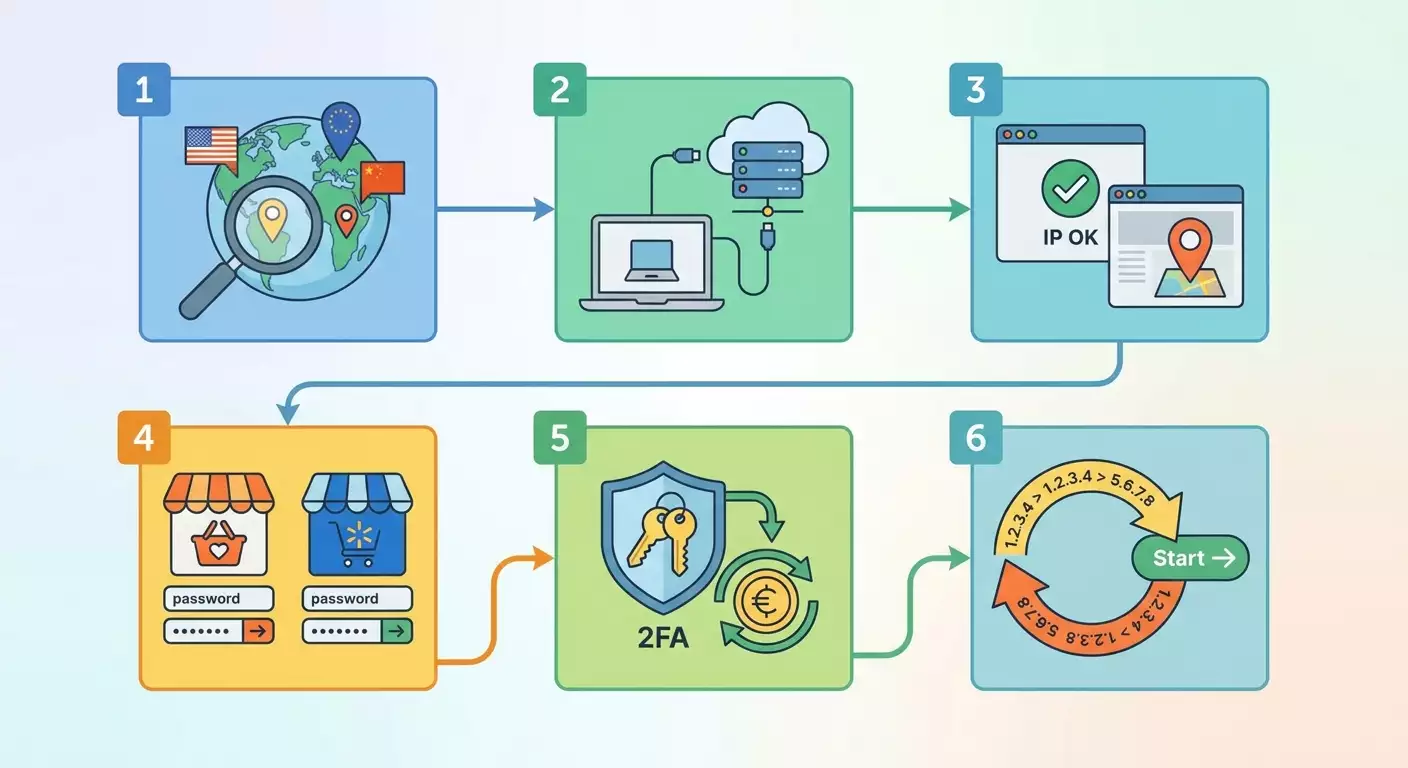
In this step-by-step guide, you'll learn how to set up mobile proxies for safe and stable work on Western platforms like Etsy and Walmart Seller from CIS countries. We'll dive into why mobile proxies are essential for e-commerce, how to choose the right IP geolocation, how to connect and test proxies on your computer and smartphone, how to carefully configure access for your target region, how to pass verifications and connect payments, and how to avoid common mistakes that can trigger account reviews or blocks. Every action is broken down to the level of specific buttons, fields, and checks, so you can confidently reach the result.
The outcome will be a fully working configuration using a mobile proxy for Etsy and, if needed, for Walmart Seller. You'll gain a clear understanding of how to maintain a consistent environment fingerprint, when to refresh your IP, how to handle two-factor authentication (2FA), how to match your IP geo with payment details and account addresses, and how to diagnose and fix issues at every stage.
This guide is aimed at beginner sellers setting up mobile proxies for international marketplaces for the first time, as well as those who want to streamline the process and reduce technical risks. Inside, you'll also find tips and sections useful for advanced users: optimizing IP rotation, team policy templates, checklists, and in-depth diagnostics.
What you need to know upfront: you'll work with browser network settings and, optionally, a separate profile in a specialized browser for session management. No advanced admin skills required. It's important to understand basic terms: IP address, port, proxy login and password, and 2FA codes.
Time required: basic connection setup and testing will take about 1–2 hours. For full implementation into your workflow (setting up Etsy and Walmart Seller, payments, verification, and final tests), allow 2–4 hours, including buffer time for possible data verification in the platform dashboards.
Preliminary Preparation
To successfully complete all steps, prepare your toolkit and access details in advance. This will save time and reduce errors during setup.
Required tools, software, and access
- A working computer or laptop with an up-to-date operating system (Windows 10/11, macOS 12+, or a modern Linux distribution).
- A modern browser (Chrome, Firefox, Safari, Edge) or a specialized browser with profile management. Use whatever you're comfortable with.
- Access to an email account you will use for Etsy and Walmart Seller. Have your login and password ready, and enable 2FA for the email.
- A phone with stable cellular service to receive SMS and install authenticator apps if you use TOTP codes (e.g., an authentication app on your smartphone).
- A mobile proxy from a reliable provider. For this guide, we'll occasionally mention mobileproxy.space as an example, as it offers convenient rotation and flexible geo selection. You can use any other reliable mobile IP service.
- An Etsy account (active or new). If new, prepare seller profile data, shop description, and product listings.
- A Walmart Seller account (if you plan to work with Walmart Marketplace). Prepare company or individual entrepreneur registration data, tax information, and payment details.
System requirements
- Stable internet connection with at least 10 Mbps download and 5 Mbps upload speed.
- At least 1 GB of free disk space for temporary files and software installation.
- Up-to-date OS and browser security updates.
What to download, install, and set up
- Browser: update to the latest version. Open settings and ensure automatic updates are enabled.
- Proxy management extension (optional): choose one from your browser's extension store that allows you to set HTTP(S) or SOCKS5 proxies with login and password. Alternatively, plan to configure at the system level.
- Authenticator app for 2FA (optional): install an app to generate one-time codes to simplify login on Etsy and Walmart Seller.
Create backups (if applicable)
- Save a backup of your passwords and 2FA codes. Use a password manager or an encrypted file. Write down recovery codes if the platform provides them.
- Export your browser profile if you value saved sessions. This helps with rollback in case of errors.
Tip: If working in a team, agree on a unified naming structure for profiles, proxy lists, and rotation policies. This prevents confusion and speeds up incident diagnostics.
Basic Concepts
Key terms in plain language
- Proxy server — an intermediary between your device and the internet. Your requests go through it, and websites see the proxy's IP instead of yours.
- Mobile proxy — a proxy that uses mobile IP addresses from cellular operators. These addresses are assigned to devices in mobile networks.
- IP rotation — replacing the current IP address with a new one. In mobile proxies, this is usually managed: by timer, on request, or by event.
- Geo-targeting — selecting a specific country, region, or even city for the proxy IP address.
- 2FA (two-factor authentication) — additional login protection with a one-time code sent via SMS or generated by an app.
Core principles and why they matter for CIS sellers
Marketplaces value consistency: platforms analyze technical session attributes and behavioral factors to protect users and maintain trust. Mobile proxies help create a stable and predictable connection context: you control the geo, maintain IP sequence and rotation timing, and manage sessions of one account from a single 'environment'. This reduces the risk of unnecessary checks and helps build a clean workflow, especially when switching between tasks, devices, and employees.
What to understand before you start
- Proxies don't override platform rules. They're for technical stability and security, not for hiding prohibited activity.
- Only use truthful account and payment data. Any mismatch between the stated address, documents, and connection geo can trigger additional checks.
- Don't change IP without reason. Abrupt, frequent changes without clear behavioral context create risks.
⚠️ Caution: Do not use proxies to bypass restrictions, bans, or violate platform terms of service. This can lead to blocks and loss of access. This guide only describes legitimate and safe technical setup practices.
Step 1: Define Your Work Strategy and Regions
Goal of this stage
Create a unified plan: which accounts you manage, from which countries you perform operations, what geo IP you need, and how this aligns with payments and logistics.
Step-by-step instructions
- Determine your target platform. Decide whether to start with Etsy, Walmart Seller, or set up both.
- Collect initial account data. For Etsy: seller and shop data. For Walmart Seller: legal and tax information.
- Set your target connection region. For Etsy, choose geo that matches your real location or your shop/warehouse address. For Walmart Seller, choose geo based on the registered seller's jurisdiction and registration requirements.
- Determine IP rotation needs. If one person manages the account from one device, rotation can be rare and manual. If multiple employees handle it, plan a schedule and policy.
- Decide how to connect the proxy. Option 1: system proxy settings. Option 2: browser extension. Option 3: a separate profile in a specialized browser. Option 4: via a mobile device.
- Prepare a profile naming scheme. For example: Etsy_Main_RU_Mobile, Walmart_US_Seller_Mobile. This prevents confusion in daily work.
Important points
- Consistent context: one account — one profile — one set of proxy settings.
- Time zone consideration: set the correct time zone on your system and note it in your policy.
Tip: Create a short 1–2 page document with the results of this step. Attach a table with fields: 'Account', 'Geo IP', 'Connection Tool', 'Responsible Person', 'Rotation Policy'.
✅ Check: You have a clear table where for each account you've defined geo IP, connection method, and rotation frequency. You can explain to a colleague why you chose that geo and how you'll maintain stability.
Potential problems and solutions
- Unclear which geo to choose. Solution: base it on the seller's registration country and the address in the profile, plus platform requirements for taxes and payouts.
- Time zone mismatch. Solution: sync system time and time zone with your actual work schedule and the platform's operations.
Step 2: Choose and Order a Mobile Proxy
Goal of this stage
Purchase a reliable mobile proxy with the required geo-targeting and a clear rotation policy, and prepare the credentials for subsequent setup.
Step-by-step instructions
- Determine the required geo. Cross-check with the plan from Step 1 and choose a country and, if possible, a city.
- Determine rotation frequency. If you work daily for 2–4 hours, rotation on demand is suitable. For long shifts and infrequent logins, you can disable rotation and change IP manually when needed.
- Choose a mobile proxy provider. Look for options that offer mobile networks from well-known operators. Example service: mobileproxy.space, which provides flexible rotation, easy management, and a wide geo grid.
- Review pricing and terms. Pay attention to protocol type (HTTP(S), SOCKS5), speed, data limits, uptime guarantees, control panel availability, and IP change methods.
- Place an order. Create an account with the provider, select a plan, and pay conveniently. Save the confirmation and proxy access details.
- Receive proxy parameters. Note down the node address (host), port, login, and password. If using IP authorization, write down the IP from which you'll connect.
Important points
- Reliability: choose a provider with transparent support and an SLA.
- Flexibility: having manual and automatic rotation simplifies work.
Tip: Prefer services where you can easily change location within the same account. This saves time during testing and optimization. In some panels, you can switch countries without changing the proxy node.
✅ Check: You have exact parameters: host, port, login, password, geo information, and rotation details. You understand how to change IP with a button in the provider's panel. You've saved credentials in a password manager.
Potential problems and solutions
- Proxy credentials not received. Solution: check your email and the provider's panel. Contact support with your order number.
- Selected geo unavailable. Solution: ask for the nearest alternative. Often, a neighboring region works without session risks.
Step 3: Set Up Connection via Mobile Proxy
Goal of this stage
Connect the proxy on your device and in your chosen browser, ensuring all requests to Etsy and Walmart Seller go through the mobile IP.
Step-by-step instructions: system-level setup (PC)
- Open your OS network settings. On Windows: Settings — Network & Internet — Proxy. On macOS: System Settings — Network — Advanced — Proxies.
- Select the proxy type (HTTP(S) or SOCKS5), enter the host and port provided by your proxy provider.
- Enable 'Require authentication' and enter the proxy login and password.
- Save changes. Apply the settings.
- Open your browser and check your IP. Search for 'what is my IP' or 'check IP'. Verify the country and city match your chosen geo.
Step-by-step instructions: setup via browser extension
- Go to your browser's extension store and install an extension that allows you to specify HTTP(S) or SOCKS5 proxy with login and password.
- Open the extension's interface. Click 'Add proxy' or similar.
- Enter host, port, login, and password. Save the profile.
- Activate the proxy profile. Ensure the extension indicator shows an active state.
- Check your IP as in the previous subsection. Verify the geo and confirm your traffic is going through the proxy.
Step-by-step instructions: separate profile in a specialized browser
- Create a new profile. Name it according to the scheme from Step 1, e.g., Etsy_Main_RU_Mobile.
- Open the network settings for that profile. Enter the proxy data: host, port, login, and password.
- Configure the browser fingerprint settings as default without drastic changes. Use typical configurations for your OS.
- Launch the profile. Check IP and geo. Ensure that after restarting, the profile retains settings and cookies remain in the profile.
Step-by-step instructions: setup on a phone (optional)
- Open the Wi-Fi network your phone is connected to. Tap 'Modify network' and go to 'Advanced' or 'Proxy'.
- Select 'Manual' and enter the proxy host and port. If authentication is required, the browser will prompt for login and password on first request.
- Save. Open the mobile browser and check IP and geo.
Important points
- Profile consistency: the connection should only be active where you work with that specific account.
- Authentication: ensure the proxy login and password are entered once and saved correctly.
Tip: If switching between tasks, use different profiles or different extensions with clear names. This way, you won't mix up proxies when working with multiple accounts.
✅ Check: Your browser consistently shows the chosen geo in verification services. Etsy and Walmart Seller pages load quickly and without errors. Proxy authentication does not prompt repeatedly on each page load.
Potential problems and solutions
- Constantly asks for proxy login and password. Solution: enable 'Remember credentials' in the extension or save credentials in the system dialog.
- Page loading is slow. Solution: check speed with your proxy provider, temporarily disable heavy browser extensions, and close background downloads.
Step 4: Geo-Targeting and IP Rotation Without Losing Stability
Goal of this stage
Configure IP geolocation for your goals and establish safe rotation rules to avoid unnecessary checks.
Step-by-step instructions
- Open your mobile proxy provider's panel. Find the location and rotation management section.
- Select geo that matches your strategy. For Etsy, align with your real or stated seller address. For Walmart Seller, consider your registration jurisdiction and platform requirements.
- Set rotation mode. By default, choose 'on demand'. This gives you control over IP changes.
- Set a hotkey for rotation (if available) or a URL to change IP. Bookmark it.
- Perform a test IP change. Click the 'Change IP' button in the panel. Refresh the IP check page and verify the address changed within the desired geo.
- Document your rotation policy. For example: 'Change IP before starting a shift and during obvious network issues, but no more than once every 2–4 hours.'
Important points
- Stability over frequency: fewer unnecessary changes keep sessions safer.
- Consistency with 2FA: do not change IP mid-way while entering a 2FA code.
Tip: Tie rotation action to a work ritual. For example: launch profile — check IP — change if needed — log into platform. This reduces the chance of accidental IP change at critical moments.
✅ Check: Rotation is manually controlled, IP changes are predictable, and geo stays in the correct country and region. You've documented when and why to change IP.
Potential problems and solutions
- Kicked out of session after rotation. Solution: change IP only before logging into the platform. If a change is unavoidable, log out of the account first and log in again after rotation.
- Geo sometimes 'jumps' to a neighboring city. Solution: ask the provider for a list of available locations or lock a specific IP pool for greater predictability.
Step 5: Set Up Etsy — Connection, Security, and Payments
Goal of this stage
Carefully configure your Etsy account via a mobile proxy, enable two-factor protection, correctly enter seller and payment data, and verify stability.
Step-by-step instructions: first login and security
- Launch the browser profile associated with Etsy. Ensure proxy settings from Step 3 are active.
- Go to Etsy's website and click 'Sign in' or 'Register' if you have a new account.
- Enter your email address and password. Click 'Continue'.
- If prompted for a one-time code, receive it via your chosen method (SMS or authenticator app) and enter it in the appropriate field.
- Open the account security settings. Enable 2FA if not already enabled. Choose your preferred method and save backup codes if provided.
Step-by-step instructions: seller data and shop
- Go to the seller shop settings. Fill in the shop name, description, and contact information.
- Enter the seller address and the address from which orders are shipped, truthfully and according to your actual data.
- Upload any required tax information if Etsy requests it for your region.
- Save changes. Verify all fields are filled correctly and without typos.
Step-by-step instructions: Etsy payments
- Open the payments section. Click 'Connect a payment method'.
- Choose a payout method available for your country. Follow on-screen instructions: enter your name, address, and bank details.
- Check that the profile data and payment details match, especially country and currency.
- Confirm settings and wait for confirmation from Etsy. Provide additional documents if required.
Important points
- Data consistency: the shop address, payment information, and your connection geo should be logical and not contradict each other.
- Smooth login: do not change IP while entering 2FA and filling important forms.
Tip: Save a screenshot of your 2FA settings and note the date of the last password change. This simplifies account recovery and communication with support if needed.
✅ Check: You can log into your Etsy account stably without additional checks at each step. The payments section shows a correctly connected method, and the profile contains a truthful and accurate seller address.
Potential problems and solutions
- Frequent repeated 2FA prompts. Solution: log in from the same profile with a stable IP within the working session. Check the device time.
- Payment verification issues. Solution: verify name and address match, upload required documents via the Etsy interface.
Step 6: Set Up Walmart Seller — Registration, Verification, and Payouts
Goal of this stage
Prepare and configure stable work with Walmart Seller Center via a mobile proxy, carefully pass verification, and connect payouts.
Step-by-step instructions: registration and login
- Launch the dedicated browser profile for Walmart Seller with the mobile proxy enabled.
- Go to the Walmart Marketplace Seller registration page and click 'Apply' or 'Register' depending on the interface.
- Fill in the registration fields with truthful data: legal seller name, country of registration, contact email, phone number.
- Confirm your email. Click the confirmation link sent to your email or enter a code if using a code-based scheme.
- Set a strong password and enable two-factor authentication for your Walmart Seller account.
Step-by-step instructions: verification and tax data
- Open the 'Verification' or 'Onboarding' section. Follow the step-by-step wizard that asks for company or individual entrepreneur information.
- Fill out the tax form according to your jurisdiction. If you are a non-US resident, typically you will use a form for foreign sellers. Follow the on-screen prompts.
- Upload supporting documents if requested. Examples: registration documents, taxpayer IDs, address confirmations.
- Submit the data for review. Monitor notifications in the dashboard and email.
Step-by-step instructions: payouts and operational settings
- Go to the payouts section. Choose an available payout service, such as Payoneer or another offered by Walmart Seller Center for your country.
- Link your payout account. Follow the instructions: log in to the payout service, confirm the connection with Walmart Seller.
- Enter operational settings: order processing times, shipping methods, return address consistent with your logistics.
- Save changes and verify that the payout connection status shows 'Active' or similar.
Important points
- Truthfulness of data: only provide real and verifiable information. Walmart Seller thoroughly cross-checks data.
- Stable connection: use the same profile and well-planned IP rotation to avoid triggering extra checks during onboarding.
Tip: Keep a log of your Walmart Seller onboarding: which steps were completed, which documents uploaded, what statuses are displayed. This speeds up resolution of support inquiries and reduces diagnostic time.
✅ Check: The Walmart Seller dashboard is accessible stably. Verification and payout statuses show successful completion of onboarding steps. Logging into the account does not trigger unexpected re-verification when using the same profile and IP within a session.
Potential problems and solutions
- Request for additional documents. Solution: provide the requested documents through the official interface. Ensure they are readable and match previously provided data.
- Login failures or frequent 2FA prompts. Solution: verify proxy stability, do not change IP during important operations. Ensure device time is synchronized.
Step 7: Geo-IP Targeting and Matching Payments and Verifications
Goal of this stage
Deeply align the chosen IP geo with payment data, documents, and profile settings to reduce the risk of unnecessary checks on Etsy and Walmart Seller.
Step-by-step instructions
- Match the IP country with the seller's country. If the account country and payout country settings match, use the corresponding proxy geo.
- Check addresses in the profile. The seller address and warehouse address should be correct and consistent with your operations. The proxy geo should logically align with these addresses.
- Check currency and bank details. They should match the country you've stated as the seller's jurisdiction or the country of your bank account.
- Synchronize the system and profile time zones. This reduces the chance of 'suspicious' logins at night in local time.
- Document the principles. Describe why the chosen geo corresponds to your business model and how it is technically supported (proxy, rotation, profile).
Important points
- Logic first: IP geo should not contradict the data you provide to the platforms.
- Predictability: changing geo without a business reason is a risk. Avoid it.
Tip: If you change location due to a business trip or real move, document it in a change log and update rotation and profile in a planned manner. Do this outside peak loads and important sales.
✅ Check: Your current IP geo, profile addresses, and payment settings form a consistent picture. Verification services confirm the correct country, and platforms do not request extra checks during normal login.
Potential problems and solutions
- Platform requests repeated verification. Solution: check all data consistency and carefully provide the requested information through verification interfaces.
- Payout service rejects linking. Solution: check the requirements for the bank account country and currency. Update details according to the payout service's rules.
Step 8: Daily Operations Policy and Safe Use
Goal of this stage
Streamline your routine process: when to launch the profile, when to change IP, how to log in and out, where to record changes, how to minimize disruptions and human error.
Step-by-step instructions
- Create a shift start checklist: enable the correct profile, check IP and geo, verify 2FA is correct, open the target platform.
- Define IP rotation triggers. Examples: before starting a shift, during obvious network issues, after long idle periods, but never during important actions.
- Establish login rules. One account — one profile — one active connection at any given moment.
- Create an event log. Record date, time, profile, operation (IP change, login, payment settings change), and comments.
- Assign a person responsible for auditing. Once a week, review the log and address any bottlenecks.
Important points
- Simplicity of rules: the simpler, the fewer errors. Keep checklists short and specific.
- Documentation: a log helps with platform support communication and internal diagnostics.
Tip: Keep email templates for support. When issues arise, you'll have a ready draft with environment description and event dates.
✅ Check: Any team member can start a shift using the checklist and go through all points without prompts. Action results are recorded in the log and are reproducible if needed.
Potential problems and solutions
- Employees forget to check IP. Solution: add IP check as the first item in the checklist. Place a reminder in your work task tracker.
- Accidental rotation at a critical moment. Solution: schedule rotation with your task calendar. Prohibit rotation during fee payments, editing payments, or confirming 2FA.
Result Verification
Checklist: what should work
- Proxy is configured and active in the chosen profile or system-wide.
- IP check shows the correct country and city or the nearest available location.
- Login to Etsy is stable, 2FA works predictably.
- Etsy payments section shows a correctly connected payout method.
- Login to Walmart Seller is stable, verification and payout statuses are green or 'Active'.
- IP rotation is manual on request and does not interfere with important operations.
How to test
- Launch the Etsy profile. Check IP. Log into the account. Go to the Payments section. Ensure no unnecessary re-verification prompts.
- Change IP via the provider panel. Refresh the IP check service and confirm the change. Close the profile and reopen it, log into Etsy. Verify stable login.
- Launch the Walmart Seller profile. Check IP. Log into the dashboard. Open the Onboarding/Verification section. Ensure statuses are fine.
- Perform a low-risk test operation. For example, update a product description or check reports. Ensure interfaces respond quickly.
- No unexpected 2FA prompts on every click.
- No sudden logouts after IP rotation outside an active session.
- Payment sections show correct statuses, payouts are connected.
- Problem: Different employees access one account from different profiles and IPs. Cause: no policy for a unified profile and tied proxy. Solution: enforce the rule 'one account — one profile — one connection', set up a shared log, and separate access rights.
- Problem: Frequent IP rotation during critical actions. Cause: rotation timer set too aggressively. Solution: switch to on-demand rotation and only change IP before login or after logout.
- Problem: Mismatch between IP geo and profile addresses. Cause: accidental location change or wrong geo choice. Solution: lock the location at the provider side, update the geo plan, double-check addresses in the profile and payments.
- Problem: Repeated 2FA prompts on every step. Cause: each login appears as a 'new device' due to environment changes. Solution: use a single profile, stable IP within a session, synchronize time and time zone.
- Problem: Slow page loading. Cause: overloaded browser or narrow proxy channel. Solution: disable unnecessary extensions, check the plan and speed with the provider, close background downloads.
- Problem: Payout linking fails. Cause: name/address mismatch or account country requirements not met. Solution: cross-check data with documents, use payout methods available for your country.
- Problem: Accidental login from a 'local' connection instead of proxy. Cause: forgot to enable the profile or turned off the extension. Solution: add proxy status check to the launch checklist, use visible status indicators.
- Granular rotation via provider API: change IP via script on profile launch and log the result.
- Fine-tune browser profile: stabilize device fingerprints without overloading with rare configurations. Prefer typical templates for your OS.
- Separate mobile proxies for different roles: listing operator, support operator, reports manager. This splits risks and speeds up diagnostics.
- Caching and local saves: store product description drafts locally to avoid losing data during rare network outages.
- Automatic reminders: set reminders to check payout and verification statuses every 2–4 weeks.
- Internal anchor links in your policy document: add links to sections like 'Step 3: Connection Setup' and 'Step 5: Etsy Setup' for quick access. For example, go to connection setup or go to Etsy settings.
Success indicators
✅ Check: All checklist items are marked. You confidently repeat login and basic operation scenarios on both platforms without extra checks and with predictable IP behavior.
Common Mistakes and Solutions
⚠️ Caution: Do not change payout or tax settings during an unstable connection. Any session interruption or re-login during confirmation may trigger additional checks.
Additional Possibilities
Advanced settings
Optimization
Tip: If using services like mobileproxy.space, explore all available panel tools: manual rotation, location changes, event log. This gives you control and reduces support time.
Tip: Set up a backup proxy with the same geo. Keep its parameters handy and test it once a week so you can quickly switch during rare failures without changing the policy.
✅ Check: You have a document with additional settings and failover scenarios. Any non-standard event has a described response and recovery time.
FAQ
1. Can I use one mobile proxy for Etsy and Walmart Seller simultaneously?
Technically possible, but not recommended. For stability and predictability, it's better to separate environments: one account — one profile — one proxy. This makes problem diagnosis easier and avoids mixing sessions of different platforms.
2. How do I know my IP is truly mobile?
Verification services often show the connection type and carrier. Additionally, reliable providers explicitly state they issue mobile IP ranges from major operators. If unsure, check multiple sources and contact the provider's support.
3. How often should I change IP during normal work?
Change as needed: before a shift starts, during visible network issues, or when required by security policy. Avoid frequent changes without reason. In practice, one change per session is usually sufficient.
4. What to do if Etsy or Walmart Seller requests additional documents?
Submit the requested documents through the official interface. Ensure the data matches what's in the profile and payments. The proxy serves as a stable channel, but does not replace accuracy and truthfulness of information.
5. Why do I get logged out after rotation?
Changing IP during an active session may be perceived as logging in from a new device. Perform rotation before logging into the account or after logging out. If rotation is unavoidable, end the session first and log in again.
6. Can I work without an extension, at the system level?
Yes, you can. System-level proxy settings work if you use one device for one role. For multiple tasks or accounts, it's more convenient to use browser profiles or extensions.
7. HTTP(S) or SOCKS5 — which to choose?
Both are common. HTTP(S) is usually sufficient for web platforms. SOCKS5 can be more flexible for specific scenarios. Base your choice on your provider's recommendations and your needs.
8. How to connect payouts if my country is not directly supported?
Check the payout methods the platform offers for your country. Only use methods officially supported in your region. Do not enter unverified details.
9. Is constant IP rotation necessary?
No. Constant rotation without reason is undesirable. Use on-demand rotation when it's truly needed.
10. What if speed is low?
Check device load, disable heavy extensions, test a different node from your provider, or contact support. Ensure your plan and coverage match your tasks.
Conclusion
You've gone through the complete cycle: from planning your strategy and choosing geo to setting up a mobile proxy, rotation, logging into Etsy and Walmart Seller, enabling 2FA, aligning geo with payments, and final verification. Now you have a working configuration, clear policies and checklists, and scenarios for unexpected situations. Your next step is to maintain stability: regularly check payout statuses, ensure profile data remains correct, and keep up with platform rule updates. Expand carefully: add new profiles and proxies as your team and tasks grow. Optimize processes: automate rotation on profile launch events, maintain a centralized log, and keep internal links to key policy sections, such as connection setup and Etsy setup. If you use a service like mobileproxy.space or similar solutions focusing on mobile IPs and convenient control panels, regularly explore new features: new locations, improved rotation methods, activity reports. This will keep you ahead and maintain predictability for your stores. Remember the main principle: technical precision and truthful data are your best protection against unnecessary checks and disruptions. By establishing a transparent policy, you can scale sales and devote more time to products, service, and marketing, rather than network configuration routines.
Tip: Conduct a mini-audit once a quarter: check if geo is still relevant, all proxies are operational, there are no unnecessary rotations, payouts are correctly connected, and time zones are synced. This takes 30–45 minutes but saves hours of support.
⚠️ Caution: Always provide truthful data in profiles and payments. Any attempt to use false information creates risks of rejections, reviews, and access restrictions.