Proxy Server Not Responding: Step-by-Step Diagnostics for Timeouts, Ports, and Firewall Issues
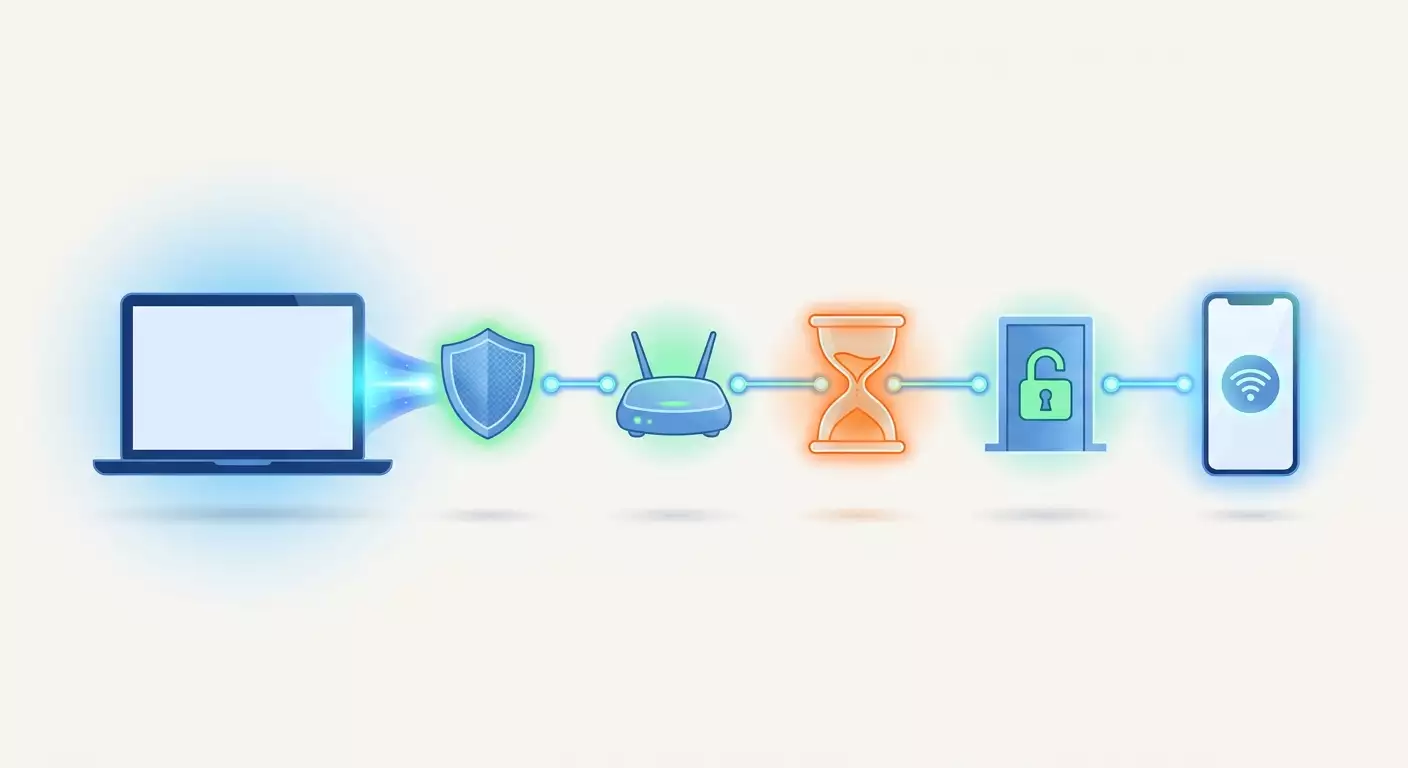
Table of contents
- Introduction: what you'll get from this guide
- Preliminary preparation: tools and data
- Basic concepts: what happens when a proxy doesn't respond
- Step 1: determine where the connection breaks
- Step 2: check the proxy address and port
- Step 3: deal with timeouts in your software
- Step 4: check the firewall and antivirus on your device
- Step 5: check the router, corporate network, and isp
- Step 6: check settings on the proxy side
- Verifying the result: stable connection checklist
- Common mistakes and their solutions
- Advanced features for power users
- Faq: common diagnostic questions
- Conclusion
Introduction: What You'll Get from This Guide
Anyone who works with proxies knows the feeling: yesterday everything was blazing fast, and today the browser is spinning its loading wheel, your scraping script hangs on the first request, and your antidetect browser says the proxy server isn't responding. No clear messages, just waiting and silence. You want to immediately contact support or switch providers, but in most cases the cause is on your end and can be fixed in ten minutes.
This practical guide will take you from "nothing works" to "connection is stable" without guesswork. We'll cover the three most common network culprits: timeouts, closed or incorrect ports, and firewalls. You'll learn to pinpoint exactly where the chain between your computer and the proxy breaks, and you'll get a set of commands that reveal the source of the problem in a minute.
Important boundary: here we only discuss network causes where the connection either doesn't establish at all or hangs. Situations where the proxy responds but returns an error code like 407 or 502 are a separate topic and aren't covered here. If you see a specific HTTP code in the response, the proxy is alive, and your case isn't about this article.
Who This Guide Is For
- Marketers and SMM specialists managing multiple accounts through mobile proxies who've encountered browser connection failures.
- Media buyers whose setups suddenly stopped working and ad accounts won't open through the proxy.
- Developers whose Python, Node.js, or Go scripts get timeouts instead of responses.
- Business owners who set up proxies for employees and want to understand why it works for one person but not another.
What You Need to Know Beforehand
Practically nothing special. You just need to be able to open a command prompt or terminal, copy commands, and read their output. We'll explain all terms along the way. If you've never opened a terminal, don't worry: every action is described down to "press this key, type this text."
How Much Time It Takes
A full diagnostic through all steps takes 30 to 60 minutes. Most often, the problem is found in the first or second step, and you'll be done in 10-15 minutes. The advanced section at the end can be explored separately once the basic connection is restored.
Preliminary Preparation: Tools and Data
Before you start, gather everything you need in one place. This will save time and prevent running between tabs at the worst possible moment.
Your Proxy Data
Log into your provider's dashboard and write down the following parameters in a text file. You'll need them at almost every step.
- Server address (host). Either a domain name like proxy.example.net or an IP address like 185.10.20.30.
- Port for HTTP connection. For mobile proxies, this is often a five-digit number, e.g., 30001 or 51234.
- SOCKS5 port, if the provider issues it separately. Sometimes it differs from the HTTP port by one or several thousand.
- Login and password for authentication, if you use credential-based auth.
- Allowed IP list, if you have IP-based authorization enabled. Check which address is listed.
- IP change link and rotation mode info: scheduled, by link, or on every request.
Tip: save this data not only in your password manager but also in a plain text file during diagnostics. You'll be pasting it into commands dozens of times, and constantly switching between windows gets tiring.
Tools Already on Your System
Good news: almost everything you need is built into your operating system. You won't have to buy anything.
- Windows 10 and 11: PowerShell (find it via Start menu search) and the cmd command prompt. PowerShell has Test-NetConnection, which replaces separate utilities.
- macOS: Terminal app (Applications, Utilities folder). nc and curl are already installed.
- Linux (Ubuntu, Debian, Fedora): any terminal. You may need to install curl, netcat, and mtr packages via your system's package manager.
What You Might Want to Install Additionally
- curl for Windows. Windows 10 version 1803 and newer, as well as Windows 11, already include curl. Check: open cmd and type curl --version. If you see a version number, you're good.
- A second device for comparison: a smartphone, another laptop, or a virtual machine. This isn't software, but a very useful tool we'll discuss in the first step.
- Access to router settings: panel address (usually 192.168.0.1 or 192.168.1.1) and admin password. Needed for step five.
Backups Before You Start
We'll be changing firewall settings and possibly router settings. Before that, do two things so you can always revert to the original state.
- In Windows, create a restore point: open search, type "Create a restore point," click Create, and give it a clear name like "Before proxy setup."
- Export your current Windows firewall rules. Open PowerShell as administrator and run: netsh advfirewall export "C:/firewall-backup.wfw". The file will appear in the root of drive C.
- In your router panel, find a section like "System," "Maintenance," or "Backup" and save the configuration file to your computer.
Warning: don't disable the firewall entirely "just in case" and don't leave it off. During diagnostics, we'll disable protection for at most two minutes to test a hypothesis, then restore everything and create a specific rule.
Basic Concepts: What Happens When a Proxy Doesn't Respond
To make diagnostics meaningful rather than chaotic trial and error, it's important to understand how the connection chain works. Then each step of the guide will test one specific part of that chain.
The Path of a Request from You to the Site
When you work through a mobile proxy, the request follows this path. First, your application (browser, script, antidetect) sends data to the operating system. The system passes it through its firewall and forwards it to the router. The router sends the traffic to your ISP. The ISP delivers packets to the proxy server. The proxy server routes the request through a mobile modem with a SIM card into the cellular carrier's network. Only then does the request go to the target site. The response travels back along the same route in reverse.
A break can happen at any point. The phrase "proxy server not responding" actually means only one thing: the response didn't reach your application within the allotted time. Where exactly it got lost is what we need to find out.
Port: The Door to the Server
Any server has one IP address but many ports, numbered from 1 to 65535. Imagine a multi-story building with one address and thousands of apartments. The proxy service "lives" in a specific apartment, i.e., listens on a specific port. If you knock on a different port, no one will answer, and you'll wait until the timeout expires. And the server itself is perfectly fine.
Ports can be open, closed, or filtered. An open port responds to a connection attempt with agreement. A closed port immediately refuses, and you get an instant error like "connection refused." A filtered port stays silent: your packets are dropped along the way, and you get nothing. It's filtering that produces the classic hanging-without-response picture, and the culprit is almost always some firewall.
Timeout: How Long to Wait Before Giving Up
A timeout is the waiting limit after which the application stops trying and reports an error. There are several types of timeouts, and they shouldn't be confused.
- Connection timeout. How long to wait for the server to agree to establish a connection. If this expires, you never reached the proxy port at all.
- Read timeout. How long to wait for data after the connection is established. If this expires, the proxy accepted you, but the target site or mobile network responded too slowly.
- Total request timeout. The upper limit for everything combined.
Mobile proxies work over cellular networks, where delays are naturally higher than datacenter proxies. If your software is set to a 5-second timeout, it may fail on a perfectly fine mobile proxy simply because the response arrived on the sixth second.
Firewall: The Filter That Decides What to Let Through
A firewall (also called a packet filter or network security system) is a program or device that inspects network packets and decides whether to pass or drop them. In your chain, there may be three or four firewalls: built into Windows or macOS, part of your antivirus, on the router, and one run by a corporate administrator. Any of them can silently drop packets on a non-standard port, and all you'll see is hanging.
IP Authorization: The Invisible Firewall on the Proxy Side
Many mobile proxy providers offer a mode where a whitelist of IP addresses is used instead of a login and password. The server only accepts connections from addresses on the list, and may simply ignore other attempts. If your home IP changed (which happens when you reboot your router with most ISPs), the proxy will no longer recognize you. Externally, it looks exactly like a blocked port.
Now that the picture is clear, let's move to practice. Each subsequent step tests one part of the chain and either clears it of suspicion or finds the culprit.
Step 1: Determine Where the Connection Breaks
Goal: in five minutes, figure out whether the problem is on your end, on the network side, or on the proxy side. This is the most important step because it eliminates half the possible causes right away.
Check the Internet Without a Proxy
- Open your browser and temporarily disable the proxy in its settings. In Chrome, that's Settings, System section, "Open your computer's proxy settings." In an antidetect browser, create a profile without a proxy or select "No proxy" mode in the profile settings.
- Open any major site, like a search engine page. It should load in a second or two.
- If the site doesn't open even without a proxy, the problem isn't the proxy. Reboot your router, check the cable or Wi-Fi, and come back to this guide later.
Check the Proxy from Another Device
- Take a smartphone and turn off Wi-Fi so it uses mobile data. This puts you on a completely different network, bypassing your router and ISP.
- Install any browser with proxy support on the phone, or use system settings: on Android, you can set it via APN, but it's easier to install a browser app with manual proxy entry.
- Enter your proxy's address, port, login, and password, then open any site that shows your IP address.
- If the proxy works from your phone, the proxy itself is alive, and the problem is between your computer and the internet: firewall, router, or software settings. Go to steps 2, 3, 4, and 5.
- If it doesn't work from the phone either, the problem is either with the proxy itself or its authentication settings. Move to step 6, then contact support.
Tip: if you don't have a second device, try connecting your computer to your phone's mobile hotspot. Changing networks gives the same effect as testing from another device.
Check Proxy Status in Your Dashboard
- Log into your mobile proxy provider's dashboard.
- Find your proxy's card and look at the status indicator. Most services show whether the modem is online and when the last activity was.
- If the indicator shows the proxy is offline or the modem is disconnected, there's no point diagnosing further: the cause is on the equipment side, and support needs to fix it.
Check: by the end of this step, you should have an answer to one question: does the proxy work from anywhere at all, or from nowhere? Write down this conclusion. It determines which steps will be most important next.
Possible Issues at This Step
Sometimes the proxy works from your phone and stops a minute later. This could be IP rotation on the proxy or an unstable cellular connection at the modem. Repeat the check two or three times with a minute between attempts to avoid false conclusions from a single try.
Step 2: Check the Proxy Address and Port
Goal: make sure the proxy port is open and accessible specifically from your computer. This is the key check: if the port doesn't respond, everything else is pointless.
Why Ping Isn't Suitable
Many people's first thought: ping the server. But ping only checks the availability of an IP address via ICMP, not whether a specific port is open. Many proxy servers don't respond to ping at all for security reasons. So a successful ping guarantees nothing, and a failed one means nothing. We need to check the TCP port specifically.
Checking the Port in Windows
- Press the Windows key, type PowerShell, and open it.
- Type the command, substituting your address and port:
Test-NetConnection -ComputerName proxy.example.net -Port 30001 - Press Enter and wait. The command may take up to 20 seconds.
- Find the line TcpTestSucceeded in the output. A value of True means the port is open and accepting connections. A value of False means you couldn't reach the port.
- Look at the PingSucceeded line. If it's False but TcpTestSucceeded is True, everything is fine: the server just doesn't respond to ping.
Checking the Port in macOS and Linux
- Open Terminal.
- Type the command:
nc -zv proxy.example.net 30001 - The -z flag tells the utility not to send data, just check the connection. The -v flag enables verbose output.
- A response like succeeded or Connection to ... port 30001 succeeded! means success. A response of Connection refused means the port is closed and the server immediately refused. If the command hangs without response and then says timed out, the port is being filtered somewhere along the path.
Checking with curl on Any System
curl can not only check the port but also make a request through the proxy right away. This is the next level of checking.
- Type the command, substituting your data:
curl -x http://login:password@proxy.example.net:30001 --connect-timeout 15 -v https://api.ipify.org - The -x flag sets the proxy. The -v flag shows all connection stages. The --connect-timeout limits the wait for connection establishment to 15 seconds.
- Read the output from top to bottom. The line Connected to proxy.example.net means the port is open. The line CONNECT api.ipify.org:443 shows curl asked the proxy to establish a tunnel. If you then get a 200 response and see an IP address at the end, the proxy is fully working.
- If the output stops at Trying 185.10.20.30:30001... and after 15 seconds shows Connection timed out, the port is unreachable from your computer.
Tip: if your password contains special characters like @ or #, curl may misparse the address. Use the separate -U flag for credentials: curl -x http://proxy.example.net:30001 -U login:password ... This way the password won't mix with the address.
Checking the Protocol and SOCKS5 Port
A common mistake: specifying an HTTP port where the software expects SOCKS5, or vice versa. The connection will establish, but data won't flow, and the application may report a timeout.
- Check in your provider dashboard which ports are issued for HTTP and for SOCKS5.
- Run a check with curl using the SOCKS5 protocol:
curl -x socks5://login:password@proxy.example.net:30002 --connect-timeout 15 https://api.ipify.org - Make sure your application uses the same protocol as the successful curl command.
Check: after this step, you know exactly one of three things: the port is open and the proxy responds through curl (then the problem is in your application settings, go to step 3); the port is open but the request through the proxy hangs (problem with authentication or on the proxy side, step 6); the port doesn't respond (problem with firewall or network, steps 4 and 5).
Possible Issues at This Step
If Test-NetConnection gives a name resolution error, your computer can't resolve the domain name to an IP address. Try substituting the IP address from your dashboard instead of the name. If it works with the IP but not the name, you have a DNS problem: change the DNS server in your network adapter settings to a public one and retry.
Step 3: Deal with Timeouts in Your Software
Goal: make sure the application gives the mobile proxy enough time to respond, and learn to distinguish connection timeouts from read timeouts.
Measure the Actual Response Time
- Run the curl command with timing output:
On Windows, use NUL instead of /dev/null.curl -x http://login:password@proxy.example.net:30001 -o /dev/null -s -w "connect: %{time_connect}s total: %{time_total}s" https://api.ipify.org - The connect value shows how long it took to establish the TCP connection with the proxy. Normal for mobile proxies: 0.05 to 0.5 seconds.
- The total value shows the time for the entire request. For mobile proxies, it's normal to see 1-4 seconds, and up to 6-8 seconds during peak cellular network load.
- Repeat the command five times and note the range. If connect is consistently low but total sometimes jumps to 10 seconds, your software needs to be prepared for such delays.
Set Timeouts in Popular Tools
Python and the requests library
The timeout parameter accepts a tuple of two values: connection timeout and read timeout. Recommended values for mobile proxies: 10 seconds for connection and 30 seconds for read.
proxies = {"http": "http://login:password@proxy.example.net:30001", "https": "http://login:password@proxy.example.net:30001"}
response = requests.get("https://api.ipify.org", proxies=proxies, timeout=(10, 30))
If you specify a single number, like timeout=5, it applies to both timeouts, and this is a common cause of false reports that the proxy server isn't responding.
Node.js and axios
In axios, the timeout parameter is single and total. Set it to at least 30000 milliseconds. For the proxy, use an agent, e.g., from the https-proxy-agent package, and pass it to the httpsAgent parameter.
Antidetect Browsers
- Open the profile settings, proxy section.
- Find the connection check button. It's present in almost all modern antidetect browsers.
- Note how long it takes to get a result. If the check takes more than 10 seconds and ends in failure while curl works, look in the browser's general settings for the proxy timeout parameter and increase it.
- Make sure the protocol field is set to HTTP or SOCKS5 according to the port that passed the check in step 2.
Scraping and Automation Tools
In Scrapy, the DOWNLOAD_TIMEOUT parameter is responsible, defaulting to 180 seconds; it's rarely the problem. In Puppeteer and Playwright, the default navigation timeout is 30 seconds, but when working through a slow cellular network, heavy pages may not finish in time: increase to 60 seconds via the timeout parameter in the goto method.
Tip: don't set timeouts too high. 30-60 seconds for reading is a reasonable limit. If you set 300 seconds, your script will hang for hours on dead connections instead of quickly retrying the request.
Distinguish Connection Timeout from Read Timeout
This is important because they're treated differently.
- A connection timeout in curl looks like "Connection timed out after 15001 milliseconds" right after the Trying line. In Python requests, it's a ConnectTimeout exception. Treatment: steps 4, 5, and 6, because you never reached the port.
- A read timeout in curl looks like "Operation timed out after 30000 milliseconds with 0 bytes received" already after the Connected line. In Python, it's a ReadTimeout. Treatment: increase the read timeout, check if IP rotation is happening on the proxy at that moment, and ensure the target site is actually accessible.
Check: after this step, the proxy response time via curl fits within your application's timeouts with at least a twofold margin. If curl responds in 3 seconds, your software should have at least 10 seconds for read.
Step 4: Check the Firewall and Antivirus on Your Device
Goal: make sure the security software on your computer isn't blocking outgoing connections to the proxy port, and create a specific allow rule if needed.
Quick Test: Temporary Disable
Before digging into rules, let's test the hypothesis the simplest way. Disable protection for a minute, repeat the port check, turn it back on.
- In Windows, open search, type "Windows Defender Firewall," and open it.
- On the left, click "Turn Windows Defender Firewall on or off."
- For the current active network profile (usually Private or Public network), select "Turn off" and click OK.
- Immediately run Test-NetConnection from step 2.
- Immediately switch the toggle back to "Turn on" and click OK.
Warning: don't work with the firewall disabled longer than needed for one check. One command takes seconds, and an open system on the network is a real risk. If you forget to turn it back on, Windows will remind you with a notification, but it's better not to rely on that.
If the port became accessible with the firewall disabled, the culprit is found. If not, check the antivirus the same way: most products have a "Pause protection for 5 minutes" option in the context menu of the tray icon. Repeat the port check and restore protection.
Create an Allow Rule in Windows Firewall
You can't disable the firewall forever. Instead, let's create a rule that allows your specific application outgoing connections.
- Open "Windows Defender Firewall" and click "Advanced settings" on the left. A window with advanced settings will open.
- In the left column, select "Outbound Rules."
- In the right column, click "New Rule."
- Select "Program" type and click Next.
- Select "This program path" and use the Browse button to specify your application's executable: browser, antidetect, or Python interpreter. Click Next.
- Select "Allow the connection" and click Next.
- Check all three profiles: Domain, Private, Public. Click Next.
- Give the rule a clear name, e.g., "Allow proxy for antidetect browser," and click Finish.
An alternative if you have many applications: create a rule of type "Port," select TCP protocol, specify the specific remote proxy port, and allow it for all programs. To do this, select "Custom" at the fourth point, under "Protocol and Ports" specify TCP, and in the "Remote port" field enter the proxy port number.
Check for Blocking Rules
Sometimes the problem isn't a missing allow rule but a block rule created by antivirus or corporate policy.
- In the same advanced settings window, open "Outbound Rules."
- Click the "Action" column header to sort the list. Block rules will appear together.
- Review them. If you see a rule blocking your application or a port range that includes the proxy port, right-click it and select "Disable Rule."
- Repeat the port check.
Firewall in macOS
- Open System Settings, Network section, then Firewall.
- If the firewall is on, click Options.
- Make sure your application in the list has the status "Allow incoming connections." Although we're interested in outgoing, some applications open a local port to work with the proxy.
- Uncheck "Block all incoming connections" if it's checked, and repeat the check.
Also check third-party utilities like Little Snitch or LuLu: they control outgoing traffic specifically and may have once remembered your denial of a permission request. Find your application in their rule list and allow connections to the proxy address.
Firewall in Linux
- Check ufw status with sudo ufw status verbose. Look at the Default: line: if outgoing is set to deny, outgoing connections are blocked by default.
- Allow outgoing connection to the proxy port:
sudo ufw allow out to 185.10.20.30 port 30001 proto tcp - If using iptables directly, view rules with sudo iptables -L OUTPUT -n -v and find DROP or REJECT lines that your traffic falls under.
- On Docker servers, remember that containers use a separate network subsystem. Check port accessibility from inside the container, not just from the host.
Tip: note the exact time when you changed firewall rules. If something breaks a week later, you'll quickly remember which change might be the cause and revert it via the file exported during preparation.
Check: after this step, Test-NetConnection or nc show a successful connection with the firewall on and antivirus active. If the port is still unreachable and didn't open with protection disabled either, the problem is higher up, at the router or network level. Move to step 5.
Step 5: Check the Router, Corporate Network, and ISP
Goal: find out if equipment between your computer and the proxy server is dropping your traffic, and fix router settings or switch networks if needed.
See Where Packets Are Actually Lost
The trace utility shows the list of nodes your packets pass through to the server. If packets reach some node and then disappear, you can see whose node it is: your router, ISP, or something further.
- In Windows, open cmd and run tracert 185.10.20.30, substituting the proxy IP.
- In macOS, run traceroute 185.10.20.30. In Linux, better use mtr -n 185.10.20.30: it shows real-time statistics and losses at each node.
- The first line is your router. The second and third are usually ISP equipment. Then backbone nodes, and finally the proxy server.
- If a response comes from all nodes except the last, that's normal: proxy servers often don't respond to such requests. Look for losses in the middle of the path.
- If asterisks start right after the first node, your router or ISP isn't passing traffic to that address.
Remember: traceroute uses ICMP or UDP, not TCP on the needed port, so it shows overall route availability, not port openness. This is an additional tool, not a replacement for the check from step 2.
Check the Router
- Open your browser and type the router address in the address bar, usually 192.168.0.1 or 192.168.1.1. The login and password are on the sticker underneath the device if you haven't changed them.
- Find a section named something like "Security," "Firewall," "Filtering," or "Parental Control."
- Check if port or URL filtering is enabled. Some routers have preset profiles like "High security" that block everything except ports 80 and 443. Switch to the standard level.
- Check the "Access Control" or "Schedule" section: there may be a rule restricting internet for your device during certain hours.
- Find the SPI Firewall or "DoS protection" setting. Sometimes overly aggressive protection perceives many parallel connections to one address as an attack and starts cutting them. If you have dozens of scraping threads, try temporarily disabling this protection and repeat the check.
- Save changes and reboot the router if necessary.
Warning: don't change router settings whose purpose you don't understand, especially in WAN and DHCP sections. A mistake there will leave the entire home or office without internet. If in doubt, make a configuration backup as described in preparation, and change only one parameter at a time.
Check MTU
MTU is the maximum size of a single data packet. If it's set incorrectly, small requests pass but large responses are lost. The symptom is characteristic: the connection to the proxy establishes, small pages open, but large ones hang.
- In Windows, run in cmd: ping -f -l 1472 8.8.8.8. If packets pass, MTU 1500 is fine. If it says "fragmentation required," decrease the number by 10 until it passes.
- Find the MTU setting in your router (usually in WAN or Internet section) and set the found value plus 28.
- Typical values: 1500 for regular cable connection, 1492 for PPPoE, 1400-1450 for some mobile and satellite channels.
Corporate Network and Public Wi-Fi
If you work in an office, coworking space, or hotel, there's almost certainly a corporate gateway with its own firewall between you and the internet. Such gateways very often allow only ports 80 and 443 and cut everything else. The five-digit mobile proxy port simply doesn't get through.
- Connect to your phone's mobile hotspot and repeat the port check. If it works, the corporate gateway is the culprit.
- Contact your system administrator with a specific request: allow outgoing TCP connections to such-and-such IP and such-and-such port. The more precise the request, the faster it will be fulfilled.
- Ask your proxy provider if it's possible to get a port from the standard range, e.g., 443 or 8080. Many services can configure this.
Home ISP
Home ISPs rarely block outgoing ports, but some cut known ranges associated with torrents or mail servers. If after all checks the port doesn't respond from your home network but does respond through mobile internet, call your ISP's support and ask directly whether they filter outgoing connections to the specified port.
Tip: save the traceroute and port check output from your network and from mobile network in one file. When you write to your ISP or administrator, attach both results. This will shorten the dialog from a week to one day.
Check: the proxy port is accessible from your network via the command from step 2, traceroute shows no losses at ISP nodes, and ping with the -f flag passes at size 1472. If all three conditions are met but the proxy still doesn't respond, it's in its own settings. Let's go to step 6.
Step 6: Check Settings on the Proxy Side
Goal: make sure the proxy server accepts you specifically: your IP is in the whitelist, the modem is online, rotation doesn't coincide with your requests, and the connection limit isn't exceeded.
Check IP Authorization
This is the most common cause when the proxy works from your phone but not from your computer, or worked yesterday but not today.
- Find your current external IP. Without a proxy, open any site that shows your IP, or run curl https://api.ipify.org in the terminal.
- Open your proxy provider's dashboard, authentication settings section.
- Compare the whitelist address with your current address. If they differ, that's the cause: your ISP issued a new address after a router reboot or on schedule.
- Update the address in the whitelist or switch to login/password authentication. The second option is more reliable if your external IP changes.
- Wait one or two minutes: proxy server settings don't apply instantly.
- Repeat the curl check from step 2.
Tip: if you work from home with a dynamic IP, login/password authentication will save you from this problem forever. The whitelist is convenient for servers with a static address, not for home computers.
Check Modem Status and Rotation
- In your dashboard, find information about the current proxy IP and the last change time.
- If you have automatic rotation set every few minutes, note: when the IP changes, the modem reconnects to the cellular network, and for 5-20 seconds the proxy genuinely doesn't respond. This is normal behavior, not a malfunction.
- If your requests regularly hit a timeout exactly at rotation time, increase the rotation interval or switch to changing IP via link to control the reconnection moment yourself.
- Try forcing an IP change via the link from your dashboard. If the proxy starts working after the change, the problem was with a specific IP or a hung modem connection.
Check the Concurrent Connection Limit
Mobile proxies have a limit on parallel connections from one port. If your scraper opened a hundred threads and the limit is fifty, extra connections will queue and time out.
- Check the limit in your plan description or dashboard.
- Close all applications using the proxy and run a single request via curl. If a single request passes but timeouts start under load, you're hitting the limit.
- Reduce the number of threads in your scraper or antidetect settings to a value below the limit. For mobile proxies, a reasonable start: 5-10 parallel connections per port.
Check Time Zones and Cellular Network
The proxy modem is physically located in a specific city and connected to a specific carrier. During evening hours when cellular networks are congested, delays increase severalfold. If timeouts appear only from 7 PM to 11 PM in the proxy region's time, it's the cellular network, not your configuration. Solution: increase timeouts during those hours or distribute the load to other hours.
Check: your current IP matches the whitelist or password authentication is used, the modem in the dashboard shows "online" status, a single curl request passes, and the thread count in your software doesn't exceed the limit. If all this is met and the proxy server still isn't responding, it's time to write to the provider's support with the results of all six steps attached.
Verifying the Result: Stable Connection Checklist
You've gone through all the steps. Now let's make sure the result wasn't accidental and won't last just a minute. Go through the checklist and tick off each item.
Checklist
- Test-NetConnection or nc shows a successful TCP connection to the proxy port with the firewall and antivirus on.
- curl through the proxy returns the mobile carrier's IP address in no more than 5 seconds in five consecutive attempts.
- The connection timeout in your software is at least 10 seconds, read timeout at least 30 seconds.
- The protocol in the application (HTTP or SOCKS5) matches the port that passed the curl check.
- A specific allow rule is created in the firewall, not disabled protection entirely.
- Your external IP matches the whitelist or password authentication is used.
- The number of parallel connections in the application is below the plan limit.
- Backups of firewall and router settings are saved for rollback.
Load Test
A single request is one thing, but real work is dozens of requests in a row. Let's run a short test.
- Run a loop of 20 requests in the terminal. In macOS and Linux:
In PowerShell, use the loop 1..20 | ForEach-Object with the same curl command inside.for i in $(seq 1 20); do curl -x http://login:password@proxy.example.net:30001 -s -o /dev/null -w "%{http_code} %{time_total}\n" https://api.ipify.org; done - You'll see 20 lines with response code and time. All codes should be 200, and time shouldn't exceed 5-6 seconds.
- If one or two out of twenty requests took longer, that's acceptable for a mobile network. If every third request times out, go back to step 6 and check the connection limit and rotation.
Test in a Real Application
- Open an antidetect browser profile with the proxy configured and click the connection check. The result should come in 2-4 seconds and show the mobile carrier's IP.
- Open a heavy page, like a social media feed. It should fully load in 10-15 seconds.
- Leave the tab open for 10 minutes and refresh the page. If it loads, the connection survives pauses and doesn't drop from inactivity.
- For scripts: run a working task for 50-100 requests and check the success rate. Success target: at least 95 percent without retries.
Success indicators: the port is accessible, response time is predictable, the application doesn't complain about timeouts for 30 minutes of operation, and you know exactly which of the six steps was the cause. The last one is especially valuable: next time you'll start diagnostics right there.
Common Mistakes and Their Solutions
Here are the situations mobile proxy users encounter most often. Format: what you see, why it happens, what to do.
Proxy Works from Phone but Not from Computer
Cause: firewall or antivirus on the computer blocks the outgoing connection to a non-standard port, or your home IP doesn't match the whitelist while the phone authenticates differently.
Solution: run the quick test with firewall disabled from step 4. If that doesn't help, compare your computer's external IP with the whitelist using step 6 instructions.
Connection Establishes but Page Won't Load
Cause: you specified an HTTP port where the application expects SOCKS5, or vice versa. The connection opens, but the application and proxy speak different languages, and data doesn't flow.
Solution: check both protocols with curl using http:// and socks5:// flags and set the one that worked in your application.
Worked for a Week, Then Stopped Without Changes on Your End
Cause: your ISP's external IP changed, and IP-based authorization is set in the proxy dashboard. Second possibility: an antivirus update added a new blocking rule.
Solution: update the whitelist or switch to password authentication. Check the blocking rules list in the firewall using step 4 instructions.
Timeouts Only in the Evening
Cause: cellular network congestion in the region where the proxy modem is located. This is a feature of mobile internet, not a malfunction.
Solution: increase read timeout to 45-60 seconds during evening hours, add request retries, and move heavy tasks to the morning if possible.
Every Tenth Request Fails with a Timeout
Cause: requests coincide with automatic IP rotation, or the parallel connection limit is exceeded.
Solution: switch rotation to link-based changes and call it between batches of requests. Reduce thread count to 5-10.
Doesn't Work in the Office, Works at Home
Cause: the corporate gateway allows only ports 80 and 443.
Solution: ask your administrator to allow the specific IP and port, or get a port from the standard range from your proxy provider.
Test-NetConnection Shows True but Browser Still Hangs
Cause: the port is open, but the browser is configured with a different port, different address, or a system exception is enabled that routes traffic around the proxy. Also possible: a proxy extension conflicts with system settings.
Solution: compare character by character the address and port in the browser with what you checked in the command. Disable all proxy-related extensions and configure the proxy in one way.
Small Pages Open, Large Ones Hang
Cause: incorrect MTU on the router or at the ISP. Large packets don't pass.
Solution: find the MTU using the ping command with the -f flag from step 5 and set it in the router.
Advanced Features for Power Users
If the basic connection is restored and you want more control, this section is for you. Here are tools and approaches that turn one-time diagnostics into ongoing monitoring.
Look at Packets: Wireshark and tcpdump
When commands from the main steps don't give a clear answer, you can look at network traffic directly.
- In Linux or macOS, run:
In Windows, install Wireshark and enter ip.addr == 185.10.20.30 and tcp.port == 30001 in the display filter.sudo tcpdump -i any host 185.10.20.30 and port 30001 -nn - Run the port check from step 2 and watch the captured packets.
- If you see outgoing packets with the SYN flag but no returning SYN-ACK, your packets leave but the response doesn't come back. Blocking is somewhere outside the computer.
- If there are no SYN packets at all, they're being dropped by the local firewall before leaving the network.
- If RST comes back, the port on the server is closed or the server is refusing you specifically.
Automatic Retries with Exponential Backoff
Mobile networks are inherently unstable. Instead of failing on the first timeout, set up retries with exponential delay: first attempt after 1 second, second after 2, third after 4. In Python, this is done via an adapter with the Retry class from urllib3; in Node.js, via the axios-retry package. Three retries with this scheme remove 90 percent of random timeouts without data loss.
Persistent Connections and Pools
Each new TCP connection through a mobile proxy costs 100-500 milliseconds to establish. If your script opens a new connection for each request, you lose time and hit the limit faster. Use sessions: requests.Session in Python, an agent with keepAlive: true in Node.js. One connection will be reused for dozens of requests.
Availability Monitoring
Set up a simple check once a minute: a script makes a request through the proxy and records response time and code. Over a week, you'll get a picture of when the proxy is faster and when it hits timeouts. This allows planning load and seeing degradation in advance instead of learning about it from broken tasks.
*/1 * * * * curl -x http://login:password@proxy.example.net:30001 -s -o /dev/null -m 20 -w "$(date +%H:%M) %{http_code} %{time_total}\n" https://api.ipify.org >> /var/log/proxy-check.logDNS Through Proxy
By default, some applications resolve domain names locally rather than through the proxy. This can lead to information leaks and situations where local DNS returns an address unreachable from the mobile network. In browser and antidetect settings, look for the "DNS through proxy" option, or use socks5h protocol instead of socks5 in curl and Python: the letter h means the proxy itself will resolve names.
Change Port to Standard
If you often work from different networks, ask your provider about assigning proxy port 443 or 8080. Such ports are open almost everywhere, and you won't have to fight corporate firewalls every time.
Fine-Tuning Rotation
Advanced scenario: tie IP changes to application logic. Before starting a new batch of requests, the script hits the IP change link, waits 10-15 seconds, checks via api.ipify.org that the address actually changed, and only then starts working. This completely eliminates timeouts from random coincidence of a request with rotation.
Tip: add not only the time but also the current proxy IP to each request log. When you analyze a month later why metrics dropped, the correlation between specific IPs and timeouts will immediately show which carrier addresses were problematic.
FAQ: Common Diagnostic Questions
Proxy Server Not Responding but Ping Works. What Does That Mean?
Ping only checks IP availability via ICMP, not port openness. The server can be alive and respond to ping, but the proxy port is filtered by a firewall or the service on it isn't running. Always check the TCP port specifically with commands from step 2.
How Long to Wait Before Considering the Proxy Unresponsive?
For establishing a connection with a mobile proxy, up to 1 second is normal, 10 seconds is the limit. For receiving data, up to 5 seconds is normal, 30-45 seconds is the limit. If the connection doesn't establish within 10 seconds, waiting longer is pointless: the response won't come.
Can I Just Disable the Firewall and Work Like That?
No. Disabling protection is acceptable only for a minute to test a hypothesis. After that, create a specific rule for the application or port as described in step 4, and turn the firewall back on. A computer without protection on the network is a risk for your accounts and data.
Why Does the Proxy Work in One Browser but Not Another?
Usually because one browser uses system proxy settings while the other has its own, and they have different data. Second possibility: the firewall allowed one executable and not the other. Check both browsers' settings and the firewall rules list.
How to Tell It's IP Rotation and Not My Settings?
Record the time of each timeout over an hour and compare with the rotation interval from your dashboard. If timeouts come with the same frequency as IP changes, it's rotation. Switch to link-based changes, and the problem will disappear.
Do I Have to Use the Terminal? Aren't There GUI Tools?
The terminal is faster and more precise, but there are alternatives. Antidetect browsers have built-in proxy checks with response time display. There are desktop programs for checking proxy lists with open port indicators. However, for finding the cause in your specific case, the terminal is indispensable: it shows at which stage the connection stopped.
What to Do If All Six Steps Are Done but the Problem Remains?
Write to your proxy provider's support and attach: Test-NetConnection or nc output, curl output with -v flag, traceroute result, your external IP, attempt times, and information on whether the proxy works from another network. With such data, a specialist will find the cause in one reply, not five clarifying questions.
Do I Need to Reboot My Computer After Changing Firewall Rules?
No, Windows, macOS, and Linux firewall rules apply instantly. A reboot is only needed for the router after changing MTU or security profiles, and not on all models.
Can I Use the Same Approach for Datacenter Proxies?
Yes, steps 1 through 5 are universal for any proxy type. Step 3 differs: datacenter proxies respond faster, and timeouts can be set lower. And step 6: datacenter proxies don't have rotation through modem reconnection, so there won't be pauses at IP change.
Conclusion
Let's sum up. You've learned not to panic at the message that the proxy server isn't responding, but to analyze the situation step by step. First, you determined whether the proxy works from anywhere at all. Then you checked whether the port is open specifically from your device. You dealt with timeouts and understood the difference between connection timeout and read timeout. You checked the firewall and antivirus and created a specific rule instead of disabling protection. You examined the router, MTU, and corporate gateway. And finally, you made sure the proxy itself accepts you specifically: whitelist, modem, rotation, limits.
The main result isn't even that the connection is restored. It's that you now have a method. Next time something hangs, you won't guess and randomly try settings. You'll open the terminal, run two commands, and know in a minute at which point of the chain the break is.
What to Do Next
- Save the file with working commands and your proxy data in a convenient place. This is your first-aid kit.
- Switch authentication to login and password if you're still using a whitelist from a home computer.
- Check timeouts in all applications that work through mobile proxies and bring them to recommended values.
- Set up minute-by-minute monitoring from the advanced section on at least one proxy to see the real stability picture in a week.
Where to Grow
The next level is automating failure handling: retries with exponential backoff, controlled rotation, connection pools, and logging each request tied to an IP. Once you master this, you'll stop noticing individual timeouts altogether: your system will handle them itself, and you'll only see final metrics. Good luck with your work, and may your proxies always respond on the first try.