Mobile Proxies for Betting: How to Set Up Geo and Stable Access — Step-by-Step Guide
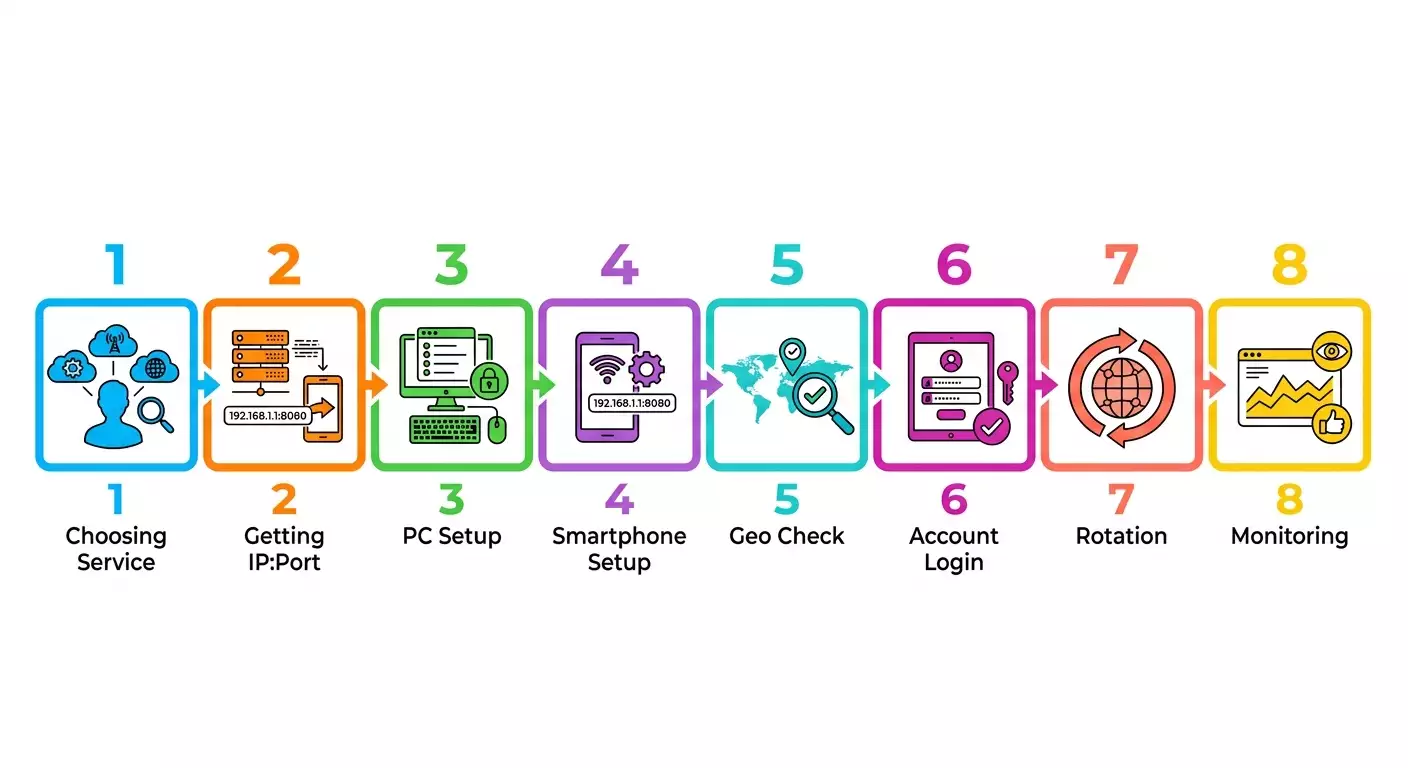
Table of contents
- Introduction
- Preliminary preparation
- Step 1: why proxies for betting and wagering
- Step 2: geo and access to bookmakers
- Step 3: setting up the mobile proxy
- Step 4: configuring the environment: pc, browser, smartphone
- Step 5: connecting to the bookmaker account
- Step 6: ip rotation, stability, and monitoring
- Step 7: multi-accounting and risks
- Verification of results
- Common mistakes and solutions
- Additional possibilities
- Faq
- Conclusion
Introduction
This practical guide is a detailed instruction on using mobile proxies for betting and wagering, with a focus on correct geo and stable access. We will walk through the entire process—from choosing a service to regular work, checks, and maintenance. By the end, you will confidently use mobile proxies on your computer and smartphone, understand how to configure geolocation, avoid common mistakes, and maintain a stable connection.
What you'll get in the end:
- An understanding of why mobile proxies are needed in the context of betting and what they affect.
- A step-by-step plan for choosing and setting up a mobile proxy.
- Detailed instructions for Windows, macOS, Android, and browsers.
- Methods for checking geo, speed, and stability.
- Safe approaches to working with one or multiple accounts without breaking the rules.
- Checklists, tips, and ready-made scenarios for your daily routine.
Who this guide is for:
- Beginners: if you've never set up a proxy before and want to do it right the first time.
- Practitioners: if you've tried proxies but faced instability, incorrect geo, quick bans, or frequent captchas.
- Advanced users: if you need a systematic approach and tips on optimization, rotation, logging, and multi-accounting.
What you need to know beforehand:
- This guide is intended for legal use and compliance with bookmaker rules. We do not encourage breaking the law or user agreements.
- Mobile proxies are a network tool. Proper configuration affects the convenience and reliability of account access.
How much time it will take:
- Choosing a service and plan: 15–30 minutes.
- Basic setup on PC or smartphone: 20–40 minutes.
- Checking geo and stability: 10–20 minutes.
- Total: 1–2 hours for the first run. After that, it gets faster.
Tip: If this is your first time setting up a proxy, plan without rushing. Follow the steps sequentially and mark completed items.
Preliminary Preparation
Before starting, let's identify the tools, system requirements, and prepare backup settings so that any changes are reversible.
Required Tools and Access
- A valid account with your chosen mobile proxy provider.
- A computer with Windows 10/11 or macOS 12+ and a smartphone with Android 10+ or iOS 14+ (if needed).
- A browser: Chrome, Firefox, Edge, or another that supports manual proxy configuration.
- Test services for checking IP and geo (pages that show your public IP, ASN, region; no need to mention specific external services—search for "check IP").
- A text editor (e.g., Notepad) to record proxy settings.
System Requirements
- A stable internet connection of at least 5 Mbps.
- Up-to-date OS and browser updates (this reduces errors and improves compatibility).
- Access to change network settings on your device.
What to Download/Install/Configure
- Check with your mobile proxy provider for the access format: IP:port, login/password; support for HTTP(S)/SOCKS5.
- If needed, install a browser extension for proxy management (if you plan to quickly switch profiles).
- Prepare a separate browser profile for betting (a clean profile with no history or cache).
Creating Backup Copies
- Create a backup of your current network settings (record the current state of proxy settings in the OS and browser).
- Export bookmarks and saved passwords (if using a separate profile).
⚠️ Caution: Before changing system network parameters, be sure to save the current state and close critical applications to avoid losing connection at an inconvenient moment.
✅ Check: You have access to your proxy provider account, a connection scheme (IP, port, login, password) saved in a text file, and a prepared clean browser profile.
Step 1: Why Proxies for Betting and Wagering
Purpose of the Step
Understand the role of mobile proxies in betting tasks and determine when they are justified and how to use them correctly, considering legal requirements and bookmaker rules.
Detailed Step-by-Step Instructions
- Formulate your task: you need stable access to your account, appropriate geo, and predictable network behavior.
- Determine how many devices and profiles will connect and how often you will work.
- Check your bookmaker's rules: allowed regions, device requirements, account limitations.
- Clarify what data the network may transmit: public IP, carrier network (ASN), approximate city, time zone.
- Align internal rules: one account—one unique network context; don't rush IP switching without necessity.
Important Points
- Mobile proxies use mobile carrier networks, making traffic appear "mobile" and often more tolerated by anti-fraud systems.
- Stability is more important than frequent IP changes. Abrupt and frequent switches without behavior resembling a real user can raise suspicion.
Tip: If you bet irregularly, use one reliable mobile IP with rare, planned rotation instead of changing addresses with every login.
Expected Result
You understand what task the mobile proxy solves in your scenario and what limitations exist within the specific bookmaker's rules.
Possible Problems and Solutions
- Problem: It's unclear if access is allowed from your country. Cause: Incomplete information in the rules. Solution: Check the bookmaker's rules sections on allowed regions and account requirements.
- Problem: Confusion between proxy and other tools. Cause: Lack of basic terminology. Solution: Note down terms; a proxy is an intermediary server with an IP and port that you connect to.
✅ Check: You have a list of goals: stable login, correct geo, no unnecessary frequent rotation, compliance with bookmaker rules.
Step 2: Geo and Access to Bookmakers
Purpose of the Step
Choose the geography of the mobile IP that aligns with the bookmaker's rules and prepare environment parameters (language, time zone, currency) for the selected region.
Detailed Step-by-Step Instructions
- Open the bookmaker's rules and find the section on regions where registration and account use are allowed.
- Match the regions available from your mobile proxy provider with the bookmaker's allowed regions.
- Select the desired city or country from your provider. If the provider offers multiple carriers in one region, list them in order of preference.
- Set the interface language and time zone in your system and browser to match the chosen geo.
- Prepare a payment scenario compatible with the account region (payment details are outside the scope of proxies, but remember regional consistency).
Important Points
- Consistency: IP, language, currency, time zone, and behavior must match the selected region.
- ASN selection: If you have a choice between different mobile carriers in the same city, choose the most stable one based on reviews or speed tests.
Tip: Keep a table with columns: "Date", "Geo", "Carrier ASN", "Session Time", "Result (success/error)". This helps quickly identify which geos and carriers work most reliably.
Expected Result
You have selected the mobile IP region and aligned the basic environment parameters with that region.
Possible Problems and Solutions
- Problem: The IP check shows a region that doesn't match the expected city. Cause: Features of geolocation databases. Solution: Focus on the country and regional ASN; city discrepancies within the same area are acceptable.
- Problem: The site interface opens in a different language. Cause: Saved cookies or system language. Solution: Clear cookies in a clean profile and switch the language in the site settings.
✅ Check: The IP check shows the correct country and a mobile ASN; the time zone and system language match the selected region.
Step 3: Setting Up the Mobile Proxy
Purpose of the Step
Get access to the mobile proxy from the provider and configure basic connection parameters: address, port, protocol, authentication, and rotation (if needed).
Detailed Step-by-Step Instructions
- Log in to your mobile proxy provider's dashboard. For example, mobileproxy.space provides a dashboard with IP:port and settings.
- Choose a plan and geo. Record: IP, port, protocol type (HTTP(S) or SOCKS5), login and password, rotation parameters.
- If rotation is available, set a period (e.g., every 30–120 minutes) or a manual switch via button/URL/timer. Start with infrequent rotation.
- Save the data in a text file: "Provider", "Geo", "IP:port", "Login", "Password", "Protocol", "Rotation".
- If the provider offers an API for rotation, write down the API key and basic commands (e.g., change IP, get status). Beginners can postpone API until the optimization stage.
Important Points
- Protocol: HTTP(S) is convenient for browsers; SOCKS5 is more universal and handles more traffic types but may require additional configuration.
- Authentication: Use only the login/password provided by the provider; do not share them with third parties.
⚠️ Caution: Do not use unauthorized public proxy lists and do not share your paid proxy access. This risks data leaks and violates the provider's terms.
Tip: In services like mobileproxy.space, it's convenient to change IP via a link with a token. Save the link in your bookmark manager and mark it as "not for sharing".
Expected Result
You have working mobile proxy credentials with the selected geo and recorded authentication and rotation parameters.
Possible Problems and Solutions
- Problem: Cannot authenticate. Cause: Swapped login/password or wrong protocol. Solution: Double-check character cases, ensure you are using the correct protocol and current port.
- Problem: Too frequent rotation. Cause: Accidentally set a short interval. Solution: Increase the rotation period to 60–120 minutes or switch to manual change.
✅ Check: You can connect to the proxy from a test device, and the IP check shows a mobile ASN and the correct country.
Step 4: Configuring the Environment: PC, Browser, Smartphone
Purpose of the Step
Connect the mobile proxy on Windows/macOS, set up the browser, and if needed, the smartphone, so that all traffic from the profile goes through the mobile IP.
Detailed Step-by-Step Instructions
Option A: Configuration on Windows 10/11
- Open "Settings" → "Network & Internet" → "Proxy".
- Disable "Automatically detect settings" if it interferes with manual settings.
- Enable "Use a proxy server".
- In the "Address" field, enter your proxy IP. In the "Port" field, enter the port (e.g., 3128 or another provided by your provider).
- Save. When you first access a site, the system will ask for the proxy login and password. Enter them and check "Remember" if needed.
Option B: Configuration on macOS 12+
- Open "System Settings" → "Network" → select the active connection (Wi‑Fi/Ethernet) → "Details".
- Go to the "Proxies" tab.
- Check "Web Proxy (HTTP)" and "Secure Web Proxy (HTTPS)" or "SOCKS Proxy" — depending on your protocol.
- Enter the proxy address and port. Click "OK", then "Apply".
- On first connection, enter the proxy login and password.
Option C: Configuration in Browser (Chrome/Edge/Firefox)
- Create a separate browser profile for betting.
- Install a proxy manager extension (if using HTTP/SOCKS at the browser level).
- Add a profile with IP, port, and authentication. Specify the protocol to use.
- Enable the proxy in the extension. Open an IP check tab and verify the change.
- Disable WebRTC leaks in the extension or browser settings (if the option is available).
Option D: Configuration on Android 10+
- Open "Settings" → "Network & Internet" → Wi‑Fi → long press on your network → "Modify network".
- Open "Advanced" → "Proxy" → "Manual".
- Enter the proxy hostname (IP) and port.
- Save. When accessing a site, the system will ask for login and password.
- Check the IP in the phone's browser.
Important Points
- Granularity: Setting the proxy at the browser level isolates traffic only within that profile, which is convenient for precise control.
- System level: A proxy at the OS level will redirect traffic from all applications. Choose this option only if you work solely with betting on that device.
Tip: For regular work, use a browser profile with manual proxy activation. This reduces the risk of accidentally accessing personal services through the proxy.
Expected Result
The mobile proxy is correctly configured on the selected device/browser. The IP check shows a mobile ASN and the chosen geo.
Possible Problems and Solutions
- Problem: Site does not open. Cause: Incorrect port, proxy temporarily unavailable. Solution: Double-check IP and port, restart the browser, verify status in the provider's dashboard.
- Problem: Authentication pop-up appears repeatedly. Cause: Wrong login/password or the extension overwrites settings. Solution: Clear authentication cache, re-enter credentials.
✅ Check: Open an IP check page and verify: the address belongs to a mobile carrier in the correct country; the data matches what's in the provider's dashboard.
Step 5: Connecting to the Bookmaker Account
Purpose of the Step
Properly log in to the bookmaker account while complying with platform rules and ensuring consistency of network environment.
Detailed Step-by-Step Instructions
- Ensure the correct proxy profile is enabled and the site language is appropriate.
- Clear cookies and cache of the profile if it's your first time logging in. Use a clean profile.
- Go to the bookmaker's site and log in to your account.
- Verify the login if required via SMS or email (check that the verification method is compatible with the region).
- Open the account settings section and check the displayed region data: time zone, date format, currency (if any).
Important Points
- Naturalness: Log in at your usual time and with your usual frequency. Sudden changes in patterns can look suspicious.
- Consistency: Avoid changing IP during a session unless absolutely necessary.
Tip: If you're on the move and using a laptop, keep the same carrier/region for the entire workday and rotate only at night or between sessions.
Expected Result
Successful login to the bookmaker account without extra checks or errors, the interface matches the selected region, and the connection is stable.
Possible Problems and Solutions
- Problem: Frequent additional checks. Cause: Abrupt IP switches, mismatch in language/time zone. Solution: Stabilize the environment, reduce rotation frequency, align language and time zone.
- Problem: Temporary login denial. Cause: Suspicious activity from the security system's perspective. Solution: Pause, verify geo consistency, and try again later without making sudden changes.
✅ Check: You have logged into the account and can view the odds and personal cabinet without warnings about unsupported region. Site response time is stable.
Step 6: IP Rotation, Stability, and Monitoring
Purpose of the Step
Set up and control mobile IP rotation to maintain stability and minimize triggers of security systems.
Detailed Step-by-Step Instructions
- Define the rotation strategy: "infrequent planned" (e.g., every 1–2 hours) or manual as needed.
- Configure rotation in the provider's dashboard. On mobileproxy.space, there are options by timer, link, or API.
- Create a calendar reminder to check proxy status and geo after rotation.
- Keep a rotation log: date, time, old IP, new IP, outcome of logging into the bookmaker site.
- Check speed and stability after each IP change: loading time of main pages, no connection errors.
Important Points
- Smoothness: Change IP between sessions, not in the middle of operations.
- Notifications: If the provider supports IP change notifications, enable them to know when to update check data.
Tip: Keep a backup mobile proxy of the same region on hand for short-term technical issues with the primary one.
Expected Result
Rotation happens according to your plan, the connection remains stable, and logging into the bookmaker account is predictable.
Possible Problems and Solutions
- Problem: After rotation, pages load slowly. Cause: Less stable cell tower or network congestion. Solution: Perform another rotation or temporarily revert to the previous IP if the service supports it.
- Problem: After rotation, additional checks are requested. Cause: Too frequent changes or a large geo jump. Solution: Reduce frequency and use rotation within the same city/carrier.
✅ Check: You successfully change IP according to your plan and, after the change, log into the bookmaker site without issues. The rotation log is filled for the last 3–5 changes.
Step 7: Multi-Accounting and Risks
Purpose of the Step
Safely organize work with multiple accounts, considering risks and complying with platform rules. This section is informational and does not encourage rule-breaking.
Detailed Step-by-Step Instructions
- Determine the number of accounts and check if the bookmaker allows them.
- Assign a separate network context for each account: its own mobile proxy, its own browser profile, its own device (if possible).
- Stagger time patterns: do not log into all accounts within one minute from the same IP.
- Record behavioral markers: language, time zone, scrolling speed, visit frequency. Maintain naturalness.
- Keep a log: a table with account, assigned proxy, browser profile, login history, and results.
Important Points
- Isolation: Each account gets its own proxy and profile to avoid overlapping cookies, device fingerprints, and IPs.
- Compliance: If the rules prohibit multiple accounts, do not create them.
⚠️ Caution: Creating or using multiple accounts may violate bookmaker rules. Before acting, read the user agreement and act strictly within the law and platform rules.
Tip: Even if you have only one account, isolation is still useful: a dedicated profile and separate network context reduce the risk of accidental cross-contamination with your other activity.
Expected Result
A clear working scheme: each account has its own environment, fixed and controlled, avoiding unintended overlaps.
Possible Problems and Solutions
- Problem: Profiles are mixed up. Cause: Lack of labeling. Solution: Name profiles according to the scheme "Account‑1 (City‑Carrier)" and use colors/tags.
- Problem: Accidental login from two accounts on the same IP. Cause: Haste. Solution: Checklist before each session and verify IP before each login.
✅ Check: For each account, a separate environment is defined, and you can prove it by the log: unique IP, unique profile, unique time windows for logins.
Verification of Results
At this stage, you have already set up the proxy, environment, and basic procedures. Now let's establish how to ensure everything works correctly.
Checklist of What Should Work
- IP check shows a mobile ASN and the correct country/region.
- Browser is in a separate profile, not mixed with your everyday activity.
- Login to the bookmaker account goes through without abnormal delays or extra checks.
- IP rotation happens as planned and does not interfere with current work.
- Rotations and events (logins, checks, errors) are logged.
How to Test
- Open an IP check page and take a screenshot of the result (do not publish it).
- Log into the bookmaker's personal cabinet and browse 3–5 typical pages (odds, live, history) to assess stability.
- Perform a quick rotation (only outside an active session), then repeat the IP check and site response.
- Cross-check server time, time zone, and language.
Success Indicators
- Pages open without noticeable delays of more than 5–7 seconds.
- After rotation, no additional checks appear or they are minimal.
- All sessions are cleanly separated by profiles and proxies.
Tip: Do a weekly mini-audit: review the log, note unusual events, and update the rotation plan if needed. This saves time and reduces error likelihood.
Common Mistakes and Solutions
Below are typical problems, their causes, and clear solutions. This section complements the advice in specific steps above.
- Problem: Mismatch between geo and bookmaker site. Cause: Accidental rotation to a different city or carrier. Solution: Fix the carrier and city; rotate within the same area.
- Problem: Constant captchas and checks. Cause: Too frequent IP changes, mixed profiles. Solution: Reduce rotation frequency, isolate profiles, monitor cookies.
- Problem: Unstable connection. Cause: Overloaded cell tower. Solution: Perform another rotation or change carrier within the same city.
- Problem: Proxy login/password prompt on every page load. Cause: Browser doesn't save authentication. Solution: Use a proxy extension with saved credentials and check "Private Browsing" settings.
- Problem: Mixed up accounts and profiles. Cause: Sloppy labeling. Solution: Give profiles clear names, add notes to the log.
- Problem: Slower speed than expected. Cause: Remote proxy server, current network load. Solution: Test 2–3 alternative IPs/carriers in the same region and lock in the best one.
- Problem: Bookmaker app behaves differently than the site. Cause: Differences in mobile app checks. Solution: Use the same proxy and action profile; if needed, switch to the web version in a browser.
Tip: If you notice a recurring problem, add it to the top of your log as an "incident template" with a ready solution. This will speed up your future responses.
Additional Possibilities
This section is for those who want to optimize processes and improve infrastructure manageability.
Advanced Settings
- API Rotation: Automate IP changes on a schedule. For example, once at night or between sessions. Providers like mobileproxy.space support this scenario.
- Bypass Lists: Route only bookmaker and related domain traffic through the proxy, leaving local services direct. Do this at the browser extension level.
- Multi-Provider: For critical stability, keep 2–3 verified proxies in the same region. Switch manually in case of speed degradation.
- Device Profiling: Keep a record of "device — profile — proxy" and do not mix roles.
Optimization
- Pauses Between Actions: Mimic natural behavior — scroll, linger on pages, go back, don't click too fast.
- Rotation Schedule: Instead of a fixed interval, prefer meaningful rotation: between sessions and after long pauses.
- Carrier Affinity: If one carrier statistically gives fewer checks and stable high speed, lock it.
What Else Can You Do
- Unified Log: Combine rotations, logins, checks, and incidents into one table. This speeds up diagnostics.
- Session Templates: Create short checklists "Prepare — Work — Finish". For example: check IP, check language/time zone, login, work, logout, record results.
- Service Discipline: Weekly, check provider status, maintenance news, scheduled windows. Services like mobileproxy.space usually post such announcements in the dashboard.
Tip: Pin 1–2 sections of this guide as quick links for yourself, such as "Verification of Results" and "Common Mistakes and Solutions", to return to them when needed.
FAQ
- How to choose between HTTP(S) and SOCKS5? For a browser, HTTP(S) is sufficient. If you plan non-standard clients or apps, use SOCKS5.
- Can I change IP during a session? It's best not to. Rotate between sessions to avoid extra checks.
- What if the geo is inaccurate at the city level? City discrepancies are acceptable. Country and carrier match are important. If city precision matters, test several IPs in the same region.
- How many accounts can I manage? Exactly as many as the bookmaker's rules allow. If prohibited, don't. If allowed, ensure full isolation.
- Do I always need to use mobile proxies? If you need mobile traffic consistency and geo, yes. If you work from one place without interruptions, regular ISP might suffice, but mobile proxies often offer more flexibility.
- How to know if the provider is stable? Keep statistics on speed, checks, and successful sessions. A stable provider gives predictable results without sharp drops.
- What if I suspect WebRTC leaks? Disable WebRTC in the extension or browser settings, use profiles where this is controlled.
- Do I need to change User-Agent? If you use a mobile proxy, it's appropriate to use a mobile User-Agent for consistency. Do this within one profile.
- How fast can I go from zero to result? Typically 1–2 hours: service selection, basic setup, check, first login, log.
- Is a service like mobileproxy.space suitable for beginners? Yes, because it offers clear connection parameters, flexible rotation, and geo options. Starting is easier when the interface and documentation are clear.
Tip: If you get stuck at any step, go back to the sections "Setting Up the Mobile Proxy" and "Verification of Results". These are two anchor steps for diagnostics.
Conclusion
Congratulations! You've completed the entire journey: from understanding the role of mobile proxies in betting tasks to their selection, setup, verification, and daily operation. You've learned to align geo and environment, manage rotation carefully, monitor stability, and document sessions. Now you can work predictably, comfortably, and within the bookmaker's rules and the law.
What to do next:
- Hone the routine: automate some checks and rotations via API (if convenient).
- Periodically compare carriers within your chosen region and lock in the best one.
- Maintain the log: it's your primary tool for diagnostics and improvement.
Where to go from here:
- Optimize rotation schedules to match real sessions.
- Deep control of browser fingerprints and profiles if you see the need.
- Multi-provider fault tolerance for critical periods.
Finally, remember: use mobile proxies responsibly, comply with your bookmaker's requirements, and do not violate user agreements or laws. Services like mobileproxy.space help you start quickly with convenient IP assignment, flexible rotation, and straightforward management. Return to the "Verification of Results" and "Common Mistakes and Solutions" sections when you need quick self-diagnosis. Happy and stable betting!