How to Configure Access to Gemini, Sora, and Midjourney via Proxy: A Step-by-Step Guide
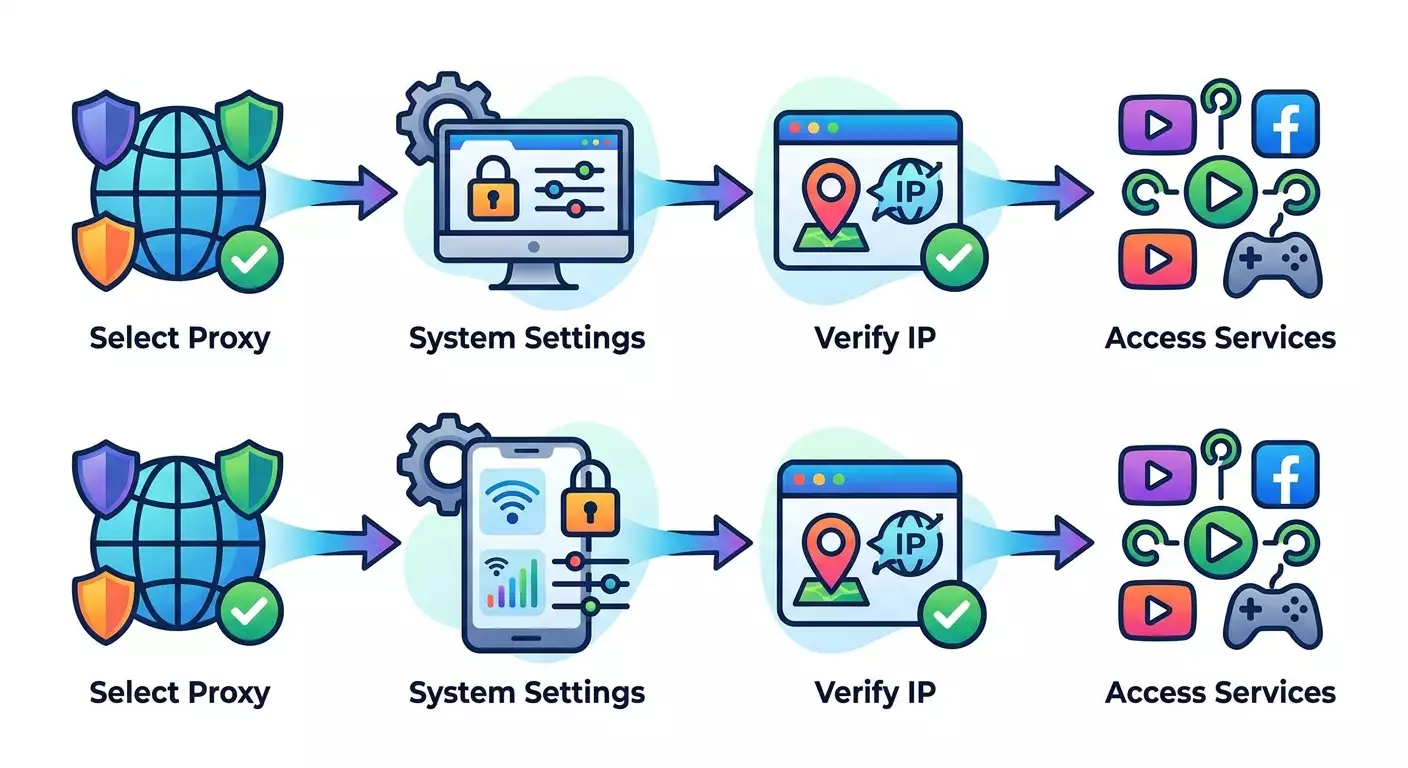
Table of contents
- Introduction
- Preparation
- Basic concepts
- Why services are unavailable in some regions
- Step 1: choosing and setting up a proxy
- Step 2: configuration on computer (windows and macos)
- Step 3: configuration on mobile (android and ios)
- Step 4: service setup (gemini, midjourney, sora)
- Step 5: check ip, speed, and stability
- Step 6: security, policy, and compliance
- Results check
- Common errors and solutions
- Additional features
- Faq
- Conclusion
Introduction
In this step-by-step guide, you'll find a clear and detailed instruction on how to set up proper access to the AI networks Gemini, Sora, and Midjourney via a proxy. We'll explain why some services aren't available everywhere, what type of proxy suits different scenarios, how to configure your system on both computer and mobile, and how to verify your setup with a checklist. The material is designed for beginners with straightforward steps and examples, while also including advanced tips for more confident users. By the end, you'll be able to use proxies securely for stable operations with AI services while adhering to platform rules and local requirements.
Who is this guide for: for designers, marketers, developers, content producers, and beginners who want to safely and legally use Gemini, Sora, and Midjourney considering local restrictions and corporate policies. No prior networking knowledge is needed: we’ll explain terms in simple language and describe each click in detail.
What you need to know beforehand: we do not discuss or recommend any actions that contradict laws or service conditions. You are responsible for complying with local laws and platform rules. Proxies are used for routing traffic, managing connections, enhancing stability, and adhering to corporate policies. Before starting, please ensure that using each service is allowed in your region and by your organization.
How much time it will take: basic setup takes 40–90 minutes, including selecting a proxy, configuring the system, verification, and testing generation. If you are setting up multiple devices and access methods (browser, Discord, API), add 20–40 minutes.
Preparation
To proceed smoothly, prepare the necessary tools in advance. We will list the tools, system requirements, what you need to download, and how to save current settings to quickly revert if needed.
Necessary Tools and Access
- An active account for each service you plan to use: Gemini (web or API), Midjourney (via Discord), Sora (web or API if you have access in your account). Ensure that usage is permitted in your region.
- Access to a reliable proxy: HTTPS or SOCKS5. If needed, use mobile or residential addresses. An example of a mobile proxy provider: MobileProxy.space.
- The ability to change network settings on your device (administrator rights on Windows or macOS, access to Wi-Fi settings on Android or iOS).
- If working with API: installed Python 3.10+ or Node.js 18+, and packages for handling HTTP (e.g., requests in Python or axios/fetch in Node).
System Requirements
- Windows 10/11 or macOS 12+ for a computer; Android 10+ or iOS 15+ for a phone. These versions ensure compatibility with current proxy settings and applications in 2026.
- A stable internet connection of 10 Mbps or higher. For image and video generation, 30 Mbps or more is preferable.
- Permissions to install and change system settings.
What to Download and Install
- Discord client for working with Midjourney. If you're using a browser, the web version of Discord is sufficient, but the app is usually more stable.
- A browser of your choice: Chrome, Edge, Firefox, or Safari. They utilize system proxy settings (we will explain further below).
- For API: Python (if not installed) and a package manager pip. Similarly for Node.js and npm/yarn/pnpm if working in JavaScript.
Backing Up Settings
- Save your current network settings. On Windows, take a screenshot of the Network & Internet Settings → Proxy section. On macOS, write down the current values in System Preferences → Network → Details → Proxy.
- Save bookmarks and browser sessions if you plan to temporarily change profiles or install extensions.
Tip: Before starting, prepare a text file to log the host, port, username, and password of the proxy, as well as your steps. This will simplify reversion and reconfiguration on other devices.
Basic Concepts
To make the steps more meaningful, let’s clarify a few terms that we will use.
- Proxy Server: an intermediary server between your device and the final service. It receives your request and forwards it, returning the response back. This helps manage routing, logging, and stability.
- HTTPS Proxy: a proxy that works with secure HTTP requests. Suitable for browsers and most applications.
- SOCKS5: a more versatile proxy protocol, suitable not only for HTTP but also for other types of traffic. It can provide better compatibility with non-HTTP applications.
- Authentication: a method of logging into a proxy. Generally involves a username and password. Sometimes IP binding is used (adding your IP to a whitelist on the provider's side).
- IP Rotation: periodic changing of the exit IP address of the proxy. In mobile proxies, this can be automatic switching every N minutes or on demand. Useful for stability and load balancing.
- Sticky Session: binding one IP to a specific session for a time. Useful for logging into accounts and long tasks where it's important that the IP doesn't change mid-request.
✅ Check: You understand the difference between HTTPS and SOCKS5, know where to find connection parameters (host, port, username/password), and grasp the concept of rotation and sticky sessions. If yes, proceed further.
Why Services Are Unavailable in Some Regions
AI platforms regulate access for various reasons. This may include compliance with local laws, phased product launches, content licensing policies, and abuse prevention. As a result, interfaces or features may not be available everywhere, and API keys might be limited to a list of countries. In 2026, each platform has its own availability policies and security measures. So, always check the official terms of use for your region and the status of your account before you begin. If a product is not officially provided in your country, do not use technical tricks to simulate a different geography. Wait for the official launch or use alternatives allowed in your region.
⚠️ Warning: Only perform actions in this guide within the framework of local laws and the rules of the respective services. You are responsible for the correctness of your usage and the data provided.
Step 1: Choosing and Setting Up a Proxy
Goal of the Step
Find the right type of proxy, obtain connection parameters, and ensure that the proxy responds correctly to test requests.
Detailed Instruction
- Determine your scenario. If you're working in a browser and Discord, HTTPS or SOCKS5 will work. If higher stability is needed for long sessions and careful handling of network restrictions, consider residential or mobile solutions.
- Choose the type of proxy: HTTPS (easier for browsers), SOCKS5 (more flexible for applications). If unsure, start with HTTPS.
- Resolve the authentication method. It's convenient to use a username and password. If the provider allows, you can add your IP to a whitelist to avoid entering credentials each time.
- Determine the rotation requirements. For logging into accounts and chatting with bots, rotation should not happen unnecessarily; use sticky sessions. For tasks with many short requests, rotation can reduce the risk of overloading a single IP.
- Select a reliable provider. Pay attention to stability, speed, support hours, and transparency of terms. For mobile proxies, see an example service MobileProxy.space, where you can choose region, rotation interval, and sticky session mode. For details on rotation principles, see the mobile proxy rotation guide.
- Gather parameters: host (e.g., proxy.example), port (e.g., 10000), username, and password. Save these in your prepared text file.
- If the proxy supports both HTTPS and SOCKS5 on different ports, record both. This will help with Discord or command-line tools.
- If you have a provider account, set: rotation interval (e.g., 15–30 minutes), enable sticky sessions for tasks that require authentication, and configure IP binding if using this authentication method.
- Perform a test check through a browser plugin or a simple HTTP client to ensure the proxy is responsive. More detailed checks will come in Step 5, but it's good to run a basic test now.
Important Points: Make sure the region associated with your proxy complies with service policies and local requirements. Do not distort information about yourself or your organization.
Tip: If you switch between tasks often, maintain separate records for different modes: "browser-HTTPS-sticky", "Discord-SOCKS5-sticky", "API-HTTPS-no-rotate".
Expected Result
You have well-defined proxy parameters, access to the provider's personal account (if available), and you have ensured that the proxy is ready to use.
Possible Problems and Solutions
- Problem: No connection to the proxy. Reason: Incorrect host or port. Solution: Double-check parameters and availability in the provider's account.
- Problem: Authentication is requested, but username/password does not work. Reason: Typo or IP binding is enabled. Solution: Change your password, disable/update the IP whitelist.
- Problem: High latency. Reason: Overloaded node. Solution: Switch the exit point or reduce the rotation interval.
✅ Check: You can make a simple network request through the proxy and get a correct response. Proceed to configure devices.
Step 2: Configuration on Computer (Windows and macOS)
Goal of the Step
Enable the system proxy on Windows or macOS so that browsers and applications utilizing system settings operate through the selected proxy.
Windows 10/11: Step-by-Step Instructions
- Open "Settings" → "Network & Internet" → "Proxy".
- In the "Manual proxy setup" section, enable "Use a proxy server".
- In the "Address" field, enter the host of your proxy. In the "Port" field, enter the port.
- Click "Save". If the proxy requires a username and password, the browser will prompt you to enter them on the first request.
- To ensure command line applications (winhttp) also use the proxy, open "Command Prompt" as an administrator and run the command to set the system proxy for WinHTTP. After setup, return and verify that the browser opens sites as usual.
Authentication on Windows
If the authentication prompt doesn’t appear, and access doesn’t work, try using a browser that definitely supports proxy authentication (Chrome, Firefox, Edge), or configure the proxy directly in the application if that option is available.
macOS 12+: Step-by-Step Instructions
- Open "System Preferences" → "Network".
- Select the active interface (Wi-Fi or Ethernet) and click "Details".
- Go to the "Proxy" section.
- Check the box for "Web proxy (HTTP)" and "Secure Web proxy (HTTPS)" or "SOCKS proxy", depending on your type.
- Enter the proxy address and port. Enable "Authentication" and input username and password if necessary.
- Click "OK" and then "Apply". Open the browser and verify access.
Environment Variables for CLI and SDK
- Open the terminal.
- Set the HTTP(S)_PROXY environment variables in the current session or shell profile. On Windows, use the appropriate syntax for PowerShell.
- Check a simple HTTP request from the command line. Ensure the response comes back and the request goes through the proxy.
Tip: Keep two terminal tabs open: one running through the proxy, the other directly. This makes it easy to check the behavior of the SDK or scripts.
⚠️ Warning: Do not store proxy usernames and passwords in plain text in shared scripts or repositories. Use secret managers or environment variables in your CI/CD.
Expected Result
Your browser and applications utilizing system settings connect through the proxy. The command line and SDK recognize the HTTP(S)_PROXY variables.
Possible Problems and Solutions
- Problem: The browser doesn’t prompt for a password and does not open sites. Reason: Conflicts with other settings or extensions. Solution: Temporarily disable extensions, restart the browser, and check the address and port.
- Problem: The SDK does not use the proxy. Reason: Environment variables are not visible to the process. Solution: Export them to the shell profile or set them in the runtime settings.
✅ Check: Open any website, then go to the browser's developer tools and check that requests are being made without errors. Execute a command-line request and ensure it works as well.
Step 3: Configuration on Mobile (Android and iOS)
Goal of the Step
Connect the system proxy on your smartphone for use with browsers and applications that respect system settings.
Android (Wi-Fi): Step-by-Step Instructions
- Open "Settings" → "Wi-Fi" and select your active network.
- Click "Modify" or "Edit network".
- Enable "Advanced settings" → "Proxy" → "Manual".
- Enter "Proxy hostname" (address) and "Port".
- Save. Upon the first web request, the system may ask for a username and password if the proxy is protected.
iOS (Wi-Fi): Step-by-Step Instructions
- Open "Settings" → "Wi-Fi" and click the info icon next to your active network.
- Scroll down to "Configure Proxy" and select "Manual".
- Enter "Server" and "Port". Enable "Authentication" if necessary, and provide username/password.
- Click "Save" and return to the main screen. Open the browser to check.
Mobile Network Features
System proxy settings via mobile networks (LTE/5G) can depend on the device manufacturer, OS version, and corporate profiles. On most devices, the system proxy is set for Wi-Fi. For mobile networks, MDM profiles or carrier configurations are often used. If you don’t have such profiles, use applications that support proxy at the application level (browsers with manual configuration, clients with a "Proxy" option). Check with your corporate network administrator for available options.
Tip: If you need to proxy only Discord or a single browser on your phone, use an application that has its own proxy settings. This simplifies configuration and does not affect other apps.
Expected Result
Your phone uses the proxy for browsers and compatible applications when connecting to the selected Wi-Fi network. You can open web pages and log in to services.
Possible Problems and Solutions
- Problem: Proxy doesn’t work for the mobile network. Reason: System setting applies only to Wi-Fi. Solution: Use Wi-Fi or applications with their own proxy settings.
- Problem: Endless login requests. Reason: Incorrect credentials. Solution: Double-check username and password in your parameter file.
✅ Check: Open a website in a mobile browser and ensure pages load steadily. Proceed to service configuration.
Step 4: Service Setup (Gemini, Midjourney, Sora)
Goal of the Step
Connect each service to ensure it operates reliably through your proxy, adhering to platform rules and usage approval in your region.
Gemini: Web Access
- Make sure the system proxy is enabled and working (Steps 2–3 completed).
- Open the Gemini website in your browser and log into your Google account. If your account meets the requirements and the product is available in your region, the interface should load smoothly.
- Make a test request: input a simple question or request a short summary. Ensure that the response comes back reliably and without disruption.
Gemini: API Access
- Check that you have a valid Gemini API key and permission to use it in your region/organization.
- Open the terminal. Ensure that HTTP(S)_PROXY environment variables are set (see Step 2).
- Install a library to work with Gemini in your language. For Python, add the official Google generative API package. For Node.js, use the official Gemini library or generic HTTP requests. Follow the SDK provider's documentation.
- Create a minimal script that sends a text request and prints the response. Ensure that the SDK or your HTTP client inherits proxy settings from the environment.
- Run the script and check that the response comes back correctly. Response time may depend on load and the quality of the channel to the proxy.
Tip: If the SDK doesn’t use the system proxy, explicitly provide proxy parameters in the SDK HTTP client (e.g., in requests.Session for Python or in the HTTPS agent in Node.js).
Midjourney: via Discord
- Install or open Discord. Ensure that your computer or phone is already operating through the system proxy.
- Log into your Discord account. Join the official Midjourney server and subscribe if necessary.
- Open any channel where image generation is allowed (e.g., newbies or DM with the bot, depending on your subscription).
- Send an image generation command (e.g., /imagine) with a simple prompt. Wait for the bot's response and the image preview.
- If needed, open the /settings command on Midjourney and ensure that the selected mode suits you (quality, style, content safety parameters).
Discord and Proxy
The Discord client typically uses system network settings. If you encounter difficulties, check whether settings are overridden at the application level or by a firewall. Sometimes, logging out and back into your account or restarting the client after enabling the proxy at the OS level helps.
Sora: Web and API (if available)
- Check the access status of Sora in your OpenAI account. As of 2026, access is provided selectively, considering platform rules and your region.
- If the web interface is available for your account, ensure the system proxy is enabled and functioning. Log into your OpenAI account, access the video generation section, and perform a test task with a short prompt.
- If you have API access, set up your environment (Python or Node.js). Export the HTTP(S)_PROXY environment variables and your OpenAI API key. Configure the client library to inherit the system proxy or obtain explicit agent/session settings.
- Run a minimal generation example with small parameters. Ensure that requests are sent reliably and do not throw network errors.
Important Points: The availability of Sora's features may vary. Follow the official documentation for your account and do not use technical tricks that contradict the rules.
Expected Result
You successfully perform basic requests in Gemini, create an image through Midjourney in Discord, and if access is available, generate a test video or frames in Sora.
Possible Problems and Solutions
- Problem: The service indicates that the feature is unavailable. Reason: Regional or account type restrictions. Solution: Check official availability; do not use prohibited methods; choose an alternative service or wait for the launch.
- Problem: The Midjourney bot does not respond. Reason: Overload, limit, network latency. Solution: Retry later, check your subscription and proxy stability.
- Problem: SDK does not detect the proxy. Reason: Client-specific settings. Solution: Explicitly pass the proxy in the HTTP client settings.
✅ Check: Gemini responds to a text request, Midjourney returns an image preview after /imagine, and Sora (if available) performs a short generation without network errors.
Step 5: Check IP, Speed, and Stability
Goal of the Step
Ensure that traffic is going through your proxy, assess connection speed and stability, and configure rotation and sticky session parameters for your task.
Detailed Instruction
- Check your external IP. Open a site that displays your IP address and ensure it matches the address/region provided by your proxy. This confirms that traffic routing is working correctly.
- Measure latency. Open developer console in your browser and check response times for several requests. For the API, use a command line with request time display enabled.
- Conduct a brief load test. Send 3–5 sequential requests to Gemini (web or API) and ensure that response times remain stable. In Midjourney, ask to generate 1–2 images sequentially and compare response times.
- Assess your need for rotation. If you make many short requests during a session, rotation can help, but for long chats and authorization sessions, it's better to enable sticky sessions. Set these parameters in the personal account of the proxy provider.
- Record the final settings. Note which rotation mode you selected and how it affected stability.
Tip: Keep a log: date/time, proxy IP, latency, success/error. This helps quickly localize failures and argue when contacting support.
Expected Result
Traffic passes through the correct proxy, latency and stability meet your standards, and rotation and sticky session parameters are optimally set for your tasks.
Possible Problems and Solutions
- Problem: IP changes too often. Reason: Aggressive rotation. Solution: Increase the rotation interval or enable sticky session.
- Problem: Latency spikes. Reason: Overloaded proxy node. Solution: Switch the exit point with the provider or use another type of proxy (e.g., mobile/residential).
✅ Check: On IP determination sites, the address of your proxy is displayed, and generations in Gemini and Midjourney proceed without network failures.
Step 6: Security, Policy, and Compliance
Goal of the Step
Establish secure operations with proxies and services, protect credentials and content, and reduce the risk of blocks and violations of terms of use.
Detailed Instructions
- Store secrets securely. Write down the proxy username/password in a password manager. For scripts, use environment variables or secret managers.
- Restrict access to the proxy. If the provider supports IP whitelists, enable them. Otherwise, use reliable passwords and two-factor authentication wherever possible.
- Follow the terms of use for services. Do not send prohibited content. Use services only in jurisdictions and scenarios where it is permitted.
- Control the load. Avoid spikes in requests. Set reasonable pauses between API calls and sensible parallelism limits.
- Protect source data. Do not transfer confidential information through the proxy unnecessarily. If needed, encrypt data at the application level.
- Prepare a rollback plan. Keep saved initial network settings handy. Know in advance how to disable the proxy in one action: on Windows — flip the "Use a proxy server" switch off, on macOS — uncheck the boxes in "Proxy" and "Apply".
Tip: Periodically change passwords for the proxy and check the logs of logins in the provider’s personal account.
⚠️ Warning: Never use proxies for unauthorized access or to conceal identity in violation of law and service terms. Any such actions may result in the blocking of your account and legal consequences.
Expected Result
You have set up safe practices, protected your credentials, and your use of services complies with rules and requirements in your region and organization.
Possible Problems and Solutions
- Problem: Frequent CAPTCHAs. Reason: Suspicious activity. Solution: Decrease request frequency, enable sticky sessions, and use stable IPs.
- Problem: Content restriction. Reason: Service policy. Solution: Study and comply with platform rules, change task types.
✅ Check: Over a week of active work, there are no security incidents, sudden blocks, or complaints from services about policy violations.
Results Check
Checklist
- Proxy parameters have been obtained, saved, and tested.
- System proxy settings are enabled on your computer and, if necessary, on your phone.
- Environment variables for CLI/SDK are configured.
- Gemini responds on the web and/or to API requests.
- Midjourney generates images through Discord without issues.
- Sora works for your account (if access is available) and performs a test generation.
- IP verification confirms that traffic is routed through the proxy.
- Safe practices are in place: secrets are securely stored, load is controlled.
How to Test
- Perform one typical action in each service: text in Gemini, /imagine in Midjourney, short task in Sora (if available).
- Check stability: repeat actions 2–3 times with a short interval.
- Measure time: ensure that latency is acceptable.
Success Indicators
- No network errors on the first call and repeat.
- Response time is stable within your scenario.
- Services do not issue warnings about non-compliance with rules.
Common Errors and Solutions
- Problem: "Cannot connect to the service." Reason: Proxy is unavailable or parameters are incorrect. Solution: Check host/port, credentials, try another node with the provider.
- Problem: "Authentication is not prompted but access is blocked." Reason: Application doesn't use system settings. Solution: Enable proxy within the application itself or use environment variables.
- Problem: "The service indicates a feature is unavailable in your region." Reason: Platform policy. Solution: Do not proceed with the configuration; use services that are officially available in your region, or wait for the launch.
- Problem: "Frequent session drops." Reason: Aggressive IP rotation. Solution: Enable sticky sessions, increase rotation interval.
- Problem: "CAPTCHAs and delays." Reason: Suspicious activity or overloaded node. Solution: Reduce request frequency, change the exit point, use a more stable type of proxy.
- Problem: "Discord does not respond to Midjourney commands." Reason: Client network issue or limits. Solution: Restart Discord, check subscription and proxy stability, retry in 5–10 minutes.
- Problem: "SDK ignores the proxy." Reason: Client settings. Solution: Explicitly pass the proxy in the client or use another HTTP backend.
Additional Features
Advanced Settings
- PAC file: set up automatic proxy configuration with conditions for when and which proxy to use.
- Split routing: browser through HTTPS proxy, Discord through SOCKS5 for better compatibility.
- Failover: backup proxy that you switch to in case of main provider failures.
Optimization
- SDK-level limits: set timeouts and request retries.
- Sessions and cache: for Gemini API, cache results of unchanged requests to reduce load and delays.
- Monitoring: keep a log of response times and response codes to notice degradation in time.
What Else Can Be Done
- Automate proxy enabling/disabling with scripts and shortcuts.
- Create browser profiles "with proxy" and "without proxy" for quick switches.
- Test different regions with the proxy provider to choose the best node based on latency and stability, if it complies with service rules and your region.
Tip: When working with mobile proxies like those from MobileProxy.space, use a fixed rotation interval for long sessions and increase it when CAPTCHAs appear for session stability.
FAQ
Question: Can I use a proxy only for one application instead of the whole system?
Answer: Yes. Many applications support their own proxy settings. You can also use environment variables to run a specific process through a proxy without affecting the system.
Question: How can I tell if my request actually went through the proxy?
Answer: Check your external IP on an IP address determination site before and after enabling the proxy. It should change to the address provided by your provider.
Question: How to reduce latency when generating images and videos?
Answer: Choose a closer and less-loaded node with your provider, use a stable type of proxy (e.g., residential or mobile with sticky sessions), and reduce request parallelism.
Question: What should I do if Discord stops responding to the Midjourney bot?
Answer: Restart Discord, check the system proxy, make sure the subscription is active, wait 5–10 minutes, and try again. Sometimes these are temporary overloads.
Question: Are mobile proxies required for working with these services?
Answer: Not necessarily. For most scenarios, HTTPS or SOCKS5 is sufficient. Mobile proxies are useful for increased stability or session needs. Consider the options available from MobileProxy.space.
Question: What if the service says the feature is not available in my region?
Answer: Follow platform rules and local laws. Don't use technical tricks to simulate different geography. Choose an available alternative or wait for the official launch.
Question: How to protect API keys and proxy passwords?
Answer: Store them in a password manager, use environment variables and secret managers. Do not include secrets in repositories and shared scripts.
Question: Why are CAPTCHAs appearing?
Answer: Due to increased activity or frequently changing IPs. Enable sticky sessions, reduce rotation, and minimize request frequency.
Question: Can different proxies be used for different services simultaneously?
Answer: Yes. Run applications with separate settings, or use a PAC file setting different rules for different domains.
Conclusion
You’ve completed the entire process: understood why certain AI services aren’t available everywhere, selected and configured an appropriate proxy, enabled system settings on your computer and phone, connected Gemini, Midjourney, and, if accessible, Sora, checked IP, speed, and stability, and prepared secure practices. Now you have a working environment for generating text, images, and videos that is stable and complies with use rules. Going forward, you can expand scenarios: automate launches, configure PAC files, implement monitoring, and set up backup nodes. Proceed gradually: start with simple requests, document results, and improve configurations without haste. If needed, return to the relevant steps of the guide and repeat the checks. Wishing you successful and productive work with neural networks!