How to Set Up Proxies for Telegram Bots: MTProto, Telethon, Pyrogram & Rotation
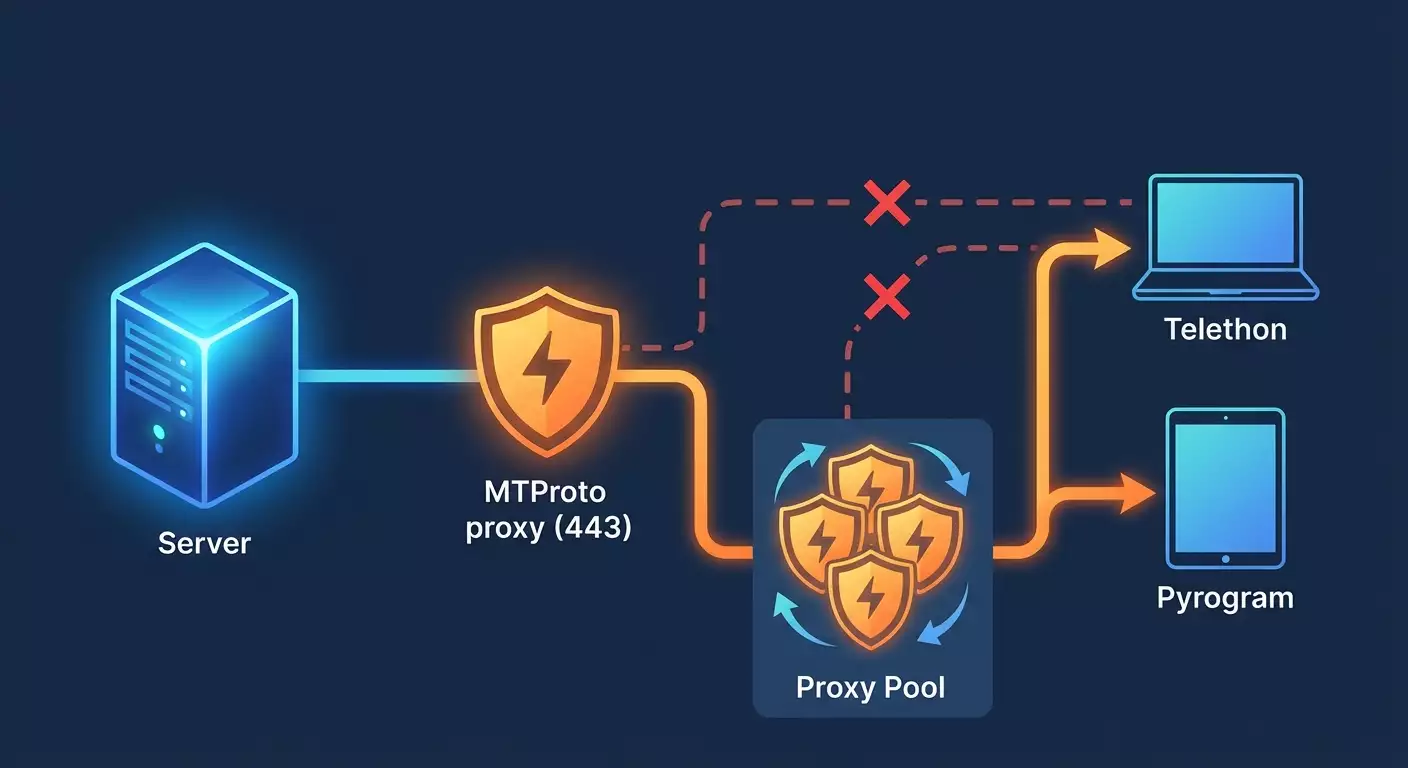
Table of contents
- Introduction
- Pre‑requisites
- Key concepts
- Step 1: prepare your server and environment
- Step 2: deploy the mtproto proxy (docker and non‑container)
- Step 3: firewall, auto‑start, and monitoring for the mtproto proxy
- Step 4: get your api id/hash and prepare accounts
- Step 5: integrate the mtproto proxy with telethon
- Step 6: use a proxy with pyrogram (socks5 and alternatives)
- Step 7: rotate proxies and accounts for reliability
- Step 8: legal and safe ways to handle network restrictions
- Validation
- Common mistakes and fixes
- Extra capabilities
- Faq
- Conclusion
Introduction
In this step‑by‑step guide, you’ll deploy your own MTProto proxy, connect it to your Telegram bots and Python clients using Telethon and Pyrogram, set up safe proxy and account rotation, and add practical checks to make sure everything runs reliably. We’ll go from zero to a working setup that keeps access to Telegram under network restrictions and boosts the resilience of your automations. The guide is current for 2025, built with clear steps, and doesn’t require deep networking knowledge—perfect for beginners with useful extras for advanced users.
By the end, you’ll have: a working MTProto proxy on your server, firewall and auto‑start configured, Telethon and Pyrogram wired to your proxy, code templates for connections and error handling, a proxy and account rotation system, testing checklists, plus security and optimization tips.
This guide is for you if you run bots or scripts, live or work behind networks that limit Telegram, want more stable connections, use multiple accounts or projects, and prefer detailed instructions with a low risk of mistakes.
What helps to know beforehand: basic terminal commands, how to install programs, how to run Python scripts. If you’re new to this, just follow the steps exactly.
Time required: basic proxy setup and library integration takes 2–4 hours. Rotation, monitoring, and fine‑tuning may add another 1–2 hours.
Pre‑requisites
Gather what you need upfront. It saves time and avoids mid‑process failures.
Tools, software, and access
- Linux server with a public IP. A VPS from any major cloud works. Minimum: 1 vCPU, 512–1024 MB RAM, 10 GB disk, port 443 available.
- Local computer with an SSH client to connect to the server.
- Python 3.11 or 3.12 on your local machine and/or server to run examples.
- Docker (for fast MTProto deployment) or the ability to install via your package manager.
- A Telegram account and access to the developer console to get your API ID and API Hash.
- A text editor for editing configs and scripts.
System requirements
- Server OS: Ubuntu 22.04 LTS or 24.04 LTS, Debian 12, Rocky Linux 9. Ubuntu 22.04 LTS is recommended for beginners.
- Port 443 not used by other services.
- IPv4 enabled. IPv6 is optional but can help if IPv4 is heavily blocked.
What to install and configure
- Install Docker on the server (or prepare to install MTProto via your package manager without containers).
- Install Python 3.11+ and pip on your local machine (and on the server if needed).
- Prepare your Telegram API credentials (API ID and API Hash).
Backups
Backups matter if you already have running projects. Save copies of existing configs, credentials, and bot sessions so you can roll back quickly. For fresh installs you can skip this step.
Tip: Keep all sensitive data (API Hash, session files, proxy secrets) in one secure location, such as a private repo or your cloud’s secret manager.
Key concepts
A quick plain‑English glossary before we dive in.
- MTProto proxy — a proxy server purpose‑built for Telegram’s MTProto protocol. It helps connect to Telegram under network restrictions. It operates at the Telegram protocol level and often uses port 443.
- SOCKS5 proxy — a general‑purpose proxy that forwards traffic for different apps. Pyrogram works great with SOCKS5. MTProto and SOCKS5 solve similar problems in different ways.
- FakeTLS/obfuscation — an MTProto mode that makes traffic look like ordinary TLS. This can lower the chance of being blocked.
- API ID and API Hash — your Telegram developer credentials. Required by Telethon and Pyrogram. Never publish these.
- Session — a local authorization file used by the library. It lets you reconnect without re‑entering a verification code.
- Proxy rotation — switching between multiple proxies on a schedule or on errors to stay online and spread the load.
Important: an MTProto proxy helps with access and improves resilience, but it doesn’t bypass Telegram’s rate limits or API rules. Use proxies for availability, not to break platform policies.
⚠️ Note: Follow your local laws and Telegram’s rules. Proxies are for availability and reliable connectivity—not for abuse, spam, or evading account bans. You are responsible for how you use them.
Step 1: Prepare your server and environment
Goal
By the end, you’ll have a server with Docker and Python installed that you can access securely via SSH.
Step‑by‑step
- SSH into the server. Use the credentials from your provider. On success you’ll see the server’s command prompt.
- Update packages. Run your distro’s standard update command (e.g., on Ubuntu). Wait for a clean finish.
- Install Docker. Follow the standard commands for your OS. Ensure the Docker service starts automatically.
- Add your user to the docker group. Log out and back in for the change to take effect.
- Test Docker. Run the hello‑world container. Make sure it finishes without errors.
- Install Python 3.11+ and pip. Ensure python3 and pip3 are available. Verify versions with their --version commands.
- Create a working directory. For example, make an mtproto folder in your home directory. Inside it, create configs, logs, and scripts subfolders.
- Prepare port 443. Check if port 443 is free. If it’s taken, free it or pick another port and remember the number.
Important
Use a strong password or SSH keys. This lowers the risk of compromise. Port 443 is preferred because it’s commonly allowed even under strict filters.
Tip: Choose a server region close to your users. Lower latency makes messages deliver faster.
Expected result
You can access the server, Docker is installed, Python 3.11+ is available, directories created, and port 443 is free.
Common issues and fixes
- Can’t SSH in. Check the IP, username, password or key. Ensure inbound port 22 is allowed in the cloud firewall.
- Docker won’t start. Check the service status. Restart Docker and try again.
- Port 443 is busy. List processes on that port. Stop the conflicting service or pick another port.
✅ Check: Print Docker and Python versions. Run the hello‑world test container successfully.
Step 2: Deploy the MTProto proxy (Docker and non‑container)
Goal
Run an MTProto proxy on your server, listening on port 443 with a secret suitable for a stable connection.
Step‑by‑step (option 1: Docker)
- Generate a proxy secret. It’s 16 bytes in hex. Use a secure random generator. Keep the value.
- Use FakeTLS if needed. Some proxy builds support the ee prefix to mimic TLS. If your image supports it, form the secret as ee + hex data and optionally a domain in the supported format. If unsure, use a plain secret without a prefix.
- Start the MTProto proxy container. Run Docker with port 443 published, your secret passed in, and a restart policy. Example: docker run -d --name mtproto -p 443:443 -e SECRET=your_secret -e PORT=443 --restart unless-stopped your_mtproto_image:latest. Substitute a valid image that supports MTProto and FakeTLS if required.
- Check container logs. Make sure the server started, is listening on 443, and shows no errors.
- Save connection parameters. You’ll need your server address, port 443, and the secret for client libraries.
Step‑by‑step (option 2: without Docker)
- Install dependencies for your chosen MTProto proxy implementation. Typically Python or Go plus networking libs.
- Download or deploy the source for the MTProto proxy and cd into the project directory.
- Generate a secret using a system random generator. Store it in the config file.
- Create the configuration. Set port 443, address 0.0.0.0, the secret, and enable FakeTLS if needed. Some builds let you specify a domain list for TLS mimicry.
- Run the proxy in the background. Watch the console output. Ensure it’s listening on 443 with no critical errors.
Important
Port 443 raises the odds of successful connections because providers usually allow it. Keep your secret private. Don’t post it publicly and don’t commit it to open repos.
⚠️ Note: Never publish your proxy secret or hardcode it into client code that will go into a repo. Use environment variables or a secret manager.
Tip: If you face heavy filtering, consider FakeTLS. It masks traffic as TLS and often helps with strict DPI. Confirm your proxy image supports it.
Expected result
The MTProto proxy listens on port 443. You have the server address, port, and secret needed for clients and libraries.
Common issues and fixes
- Container won’t start. Check env vars, image name, and port availability. Inspect logs for details.
- Port listen error. Ensure no conflicting services and that you have privileges to bind to 443.
- FakeTLS fails. Verify the secret format and that your image supports the mode.
✅ Check: On the server, verify port 443 is open. On your local PC, add the proxy in your Telegram client and confirm it connects and messages send successfully.
Step 3: Firewall, auto‑start, and monitoring for the MTProto proxy
Goal
Harden the server, ensure automatic restarts, and add basic monitoring for port availability and logs.
Step‑by‑step
- Enable a firewall. If you use ufw, turn it on and allow ports 22 and 443. Confirm the changes.
- Check firewall status. Ensure rules are applied and ports allowed.
- Enable Docker auto‑start. Docker usually starts as a service at boot. Ensure your proxy container uses restart unless‑stopped.
- Create a systemd unit for the non‑Docker variant. If not using containers, create a systemd service, set the proxy start command, and use Restart=always.
- Configure logs. Send container/app stdout to a file under logs and enable log rotation so the disk won’t fill up.
- Add a simple port monitor. Write a tiny Python script that checks port 443 every minute and logs results. Run it via a systemd timer or cron.
Important
Restrict SSH access with keys and, if possible, IP allowlists. Rotate and clean logs to prevent disk exhaustion.
Tip: If your cloud provider has a built‑in firewall, set rules there too. Allow inbound 443 and 22; you can close the rest.
Expected result
The server is protected by a firewall, the proxy restarts on reboot, logs are collected and rotated, and port 443 is monitored by a simple script.
Common issues and fixes
- UFW blocks connections. Review rule order and allowed ports. Re‑allow 443 and 22 and restart ufw.
- Logs grow fast. Enable log rotation and lower log verbosity in the proxy config.
- Service won’t start on reboot. Check your systemd unit or Docker params. Look for typos in service names.
✅ Check: Reboot the server. Confirm the container or proxy service is up, port 443 is open, and the Telegram client connects.
Step 4: Get your API ID/Hash and prepare accounts
Goal
Obtain developer credentials and prepare accounts and sessions for Telethon and Pyrogram.
Step‑by‑step
- Open the Telegram developer console. Log in with your account’s phone number. Create a developer app following the prompts.
- Save your API ID and API Hash. These values are unique—store them securely. Don’t share them.
- Prepare accounts for automation. If you’ll use multiple accounts, create them now. Pass Telegram’s basic checks so they’re active and unrestricted.
- Create environment variables. Locally or on the server, prepare an env file for API_ID, API_HASH, proxy params, and session file paths.
- Install Telethon and Pyrogram via pip. Ensure they install cleanly. Also install tgcrypto for faster crypto operations.
- Generate initial sessions. Run short auth scripts for Telethon and Pyrogram, enter the code you receive, and create session files in your project folder.
Important
Keep your API Hash and sessions secret. These are critical. Set file permissions so unauthorized users cannot read them.
⚠️ Note: Never share Telegram verification codes or enter them on third‑party sites. Authorize only in the official client or your own scripts.
Tip: If you use multiple accounts, name session files clearly—e.g., session_main.session, session_backup.session.
Expected result
You have an API ID and Hash, Telethon and Pyrogram installed, at least one session file for each, and environment variables ready.
Common issues and fixes
- No verification code arrives. Check the internet and the device linked to Telegram. Wait a few minutes and retry.
- tgcrypto install fails. Install build tools for your OS and retry, or use prebuilt wheels for your platform.
✅ Check: Run a short script that imports Telethon and Pyrogram, prints their versions, and exits. If versions print, the install worked.
Step 5: Integrate the MTProto proxy with Telethon
Goal
Connect Telethon to Telegram through your MTProto proxy, send a test message, and validate error handling.
Step‑by‑step
- Prepare parameters: API_ID, API_HASH, proxy server address, port 443, and the secret.
- Create a Python script. Import TelegramClient and connection from Telethon.
- Specify the MTProto connection. Telethon supports MTProto via a special connection class. Use connection=ConnectionTcpMTProxyRandomizedIntermediate and pass a tuple of host, port, and secret to the proxy parameter.
- Open the client with client.start(). If needed, it will ask for a verification code to create the session.
- Send a test message to yourself: client.send_message('me', 'Test via MTProto proxy'). Wait for a clean finish.
- Close the client with client.disconnect().
Telethon code example
from telethon import TelegramClient, connection; import os; api_id = int(os.environ.get('API_ID')); api_hash = os.environ.get('API_HASH'); proxy_addr = os.environ.get('PROXY_HOST'); proxy_port = int(os.environ.get('PROXY_PORT', '443')); proxy_secret = os.environ.get('PROXY_SECRET'); client = TelegramClient('session_telethon', api_id, api_hash, connection=connection.ConnectionTcpMTProxyRandomizedIntermediate, proxy=(proxy_addr, proxy_port, proxy_secret)); async def main(): await client.send_message('me', 'Test via MTProto proxy'); with client: client.loop.run_until_complete(main())
Important
Proxy params are correct if you see no connection errors. The secret must be a hex string matching your proxy’s expected format.
Tip: Keep PROXY_SECRET, API_ID, and API_HASH in environment variables or a secret manager—never in code.
Expected result
Your Saved Messages contain the test message, and the script exits without exceptions.
Common issues and fixes
- Connection error. Confirm port 443 is open and that address and secret are correct. Ensure the container is running.
- Timeout. Your provider might be blocking connections. Enable FakeTLS on the proxy and try again.
- Invalid secret. Regenerate the secret, restart the proxy, and update your environment variables.
✅ Check: Open Saved Messages and find your test message. Multiple clean runs confirm stability.
Step 6: Use a proxy with Pyrogram (SOCKS5 and alternatives)
Goal
Connect Pyrogram to Telegram via a proxy, send a test message, and set up error handling.
Why SOCKS5 for Pyrogram
Pyrogram natively supports SOCKS5 and HTTP proxies. Direct MTProto proxy support may vary by version. The practical route is to use a SOCKS5 proxy. If you specifically need MTProto, use Telethon—or run a local SOCKS5‑to‑MTProto bridge on your machine and connect to it from Pyrogram as a SOCKS5 proxy.
Step‑by‑step
- Get a SOCKS5 proxy. You can deploy your own on a server (via popular proxy services or packages) or use a reputable provider. Ensure you know the host, port, and—if required—username and password.
- Install Pyrogram and tgcrypto. Make sure imports work.
- Create an env file with proxy params. Add SOCKS_HOST, SOCKS_PORT, and SOCKS_USER/SOCKS_PASS if needed.
- Write a Pyrogram script, passing the proxy parameter as a dict with scheme socks5, hostname, and port.
- Start the client and send a test message to yourself. Confirm delivery.
Pyrogram code example with SOCKS5
from pyrogram import Client; import os; api_id = int(os.environ.get('API_ID')); api_hash = os.environ.get('API_HASH'); proxy = { 'scheme': 'socks5', 'hostname': os.environ.get('SOCKS_HOST'), 'port': int(os.environ.get('SOCKS_PORT', '1080')), 'username': os.environ.get('SOCKS_USER') or None, 'password': os.environ.get('SOCKS_PASS') or None }; app = Client('session_pyrogram', api_id=api_id, api_hash=api_hash, proxy=proxy); with app: app.send_message('me', 'Pyrogram test via SOCKS5 proxy')
Alternative: a SOCKS5‑to‑MTProto bridge
If you must use your MTProto server but the client is Pyrogram, run a local bridge that connects to MTProto and exposes a local SOCKS5 port. Pyrogram connects to that local SOCKS5. Exact commands depend on the tool you choose, so Telethon with MTProto remains the simpler and more reliable path.
Important
SOCKS5 is stable and supported by Pyrogram and covers most use cases. Watch Pyrogram logs to surface network errors and timeouts quickly.
Tip: If your network conditions fluctuate, keep a backup SOCKS5 from another provider. Switching is a one‑line change in the config.
Expected result
Pyrogram sends messages successfully via the chosen proxy. A session is created and saved to a file.
Common issues and fixes
- Wrong SOCKS5 credentials. Fix username/password and check for IP allowlists.
- Proxy blocks Telegram. Ensure the provider doesn’t block MTProto. Switch proxies or use Telethon with MTProto.
- Timeouts. Increase timeouts, add retries with exponential backoff.
✅ Check: Look for the Pyrogram test message in Saved Messages. Several consecutive runs without errors confirm stability.
Step 7: Rotate proxies and accounts for reliability
Goal
Set up a proxy and account pool, implement automatic rotation and health checks, and reduce the impact of network hiccups for more stable bots.
Rotation principles
- Maintain multiple proxies and multiple accounts. This helps ride through local outages.
- Base switching decisions on sound metrics: connection errors, timeouts, latency growth.
- Use Round Robin, Sticky Sessions, and Health Checks.
- Respect Telegram’s rules. Don’t push parallelism beyond reasonable limits.
Step‑by‑step
- Create a pool config. List proxies: type, host, port, secrets or credentials, priorities. Also list accounts with session file paths.
- Write a health‑check module. It tests each proxy: port openness, quick connect attempt, and a simple Telegram action.
- Implement Round Robin. Your code should pick the next healthy proxy for a new client or task.
- Add backoff and retries. On failure, retry with increasing delays, then switch to the next proxy.
- Enable sticky behavior. For long‑running tasks, keep the chosen proxy to avoid breaking sessions mid‑flow.
- Log all switches. Record the reason and outcome to understand network behavior.
Sample rotation structure
import os, random, time; from telethon import TelegramClient, connection; PROXIES = [ {'type':'mtproto','host':'h1.example','port':443,'secret':os.environ.get('S1')}, {'type':'mtproto','host':'h2.example','port':443,'secret':os.environ.get('S2')} ]; SESSIONS = ['s1.session','s2.session']; def pick_proxy(): random.shuffle(PROXIES); return PROXIES[0]; def client_for_session(sess, p): return TelegramClient(sess, int(os.environ['API_ID']), os.environ['API_HASH'], connection=connection.ConnectionTcpMTProxyRandomizedIntermediate, proxy=(p['host'], p['port'], p['secret'])); for sess in SESSIONS: for attempt in range(3): p = pick_proxy(); try: with client_for_session(sess, p) as c: c.send_message('me', f'Hello via {p['host']}'); break; except Exception as e: time.sleep(2**attempt)
Important
Mind Telegram’s limits. Rotation should not become aggressive reconnect storms. Don’t mix sessions between accounts.
⚠️ Note: Use rotation for resilience and stability, not to bypass rate limits. Follow platform rules and the law.
Tip: Track metrics such as connection setup time and success rate. Temporarily quarantine problematic proxies from the pool.
Expected result
If one proxy fails, your code switches to another from the pool, tasks keep running, and your logs explain what happened.
Common issues and fixes
- Frequent switching. Raise timeouts and error thresholds so you don’t overreact to transient latency.
- All proxies down. Spin up a backup in another region/provider.
- Session loss. Ensure you don’t use the same session file concurrently from multiple processes.
✅ Check: Stop the main proxy container on purpose and run your script. It should switch to the backup and keep sending messages. Check the logs.
Step 8: Legal and safe ways to handle network restrictions
Goal
Use compliant, technically sound techniques to improve connection resilience without breaking Telegram’s rules.
Step‑by‑step
- Stick to port 443. Configure the proxy and clients to use it. This boosts your odds in corporate and ISP filters.
- Enable FakeTLS if needed. If your proxy image supports an ee‑prefixed secret, use it. It helps with DPI filtering.
- Add IPv6. If your host supports it, enable IPv6. Some networks filter IPv4 but pass IPv6.
- Tune DNS resolvers. Use reliable DNS to avoid routing mishaps.
- Prepare a failover route. Keep a second server in another region and a written switchover plan.
Creating a FakeTLS secret (example)
Some implementations support an ee‑prefixed secret for TLS mimicry. Generate 16 random bytes and, if supported, safely add a domain per your proxy’s format. Pass the resulting secret via an environment variable and restart the proxy.
Important
FakeTLS improves resilience, but it’s not a silver bullet in every network. Follow the rules of the platform and local legislation.
Tip: Avoid exotic ports unless necessary. The more your traffic looks like standard TLS on 443, the more reliably it slips through filters.
Expected result
Reliable connectivity to Telegram even in tightly filtered networks, with the ability to fail over quickly.
Common issues and fixes
- FakeTLS secret rejected. Check the format and your proxy’s compatibility.
- Provider blocks the IP. Move the proxy to another IP or region.
✅ Check: Test from different networks, such as mobile and corporate. Both should connect consistently. If you set up a backup server, test it too.
Validation
Checklist
- Server reachable via SSH, firewall configured, port 443 open.
- MTProto proxy running on 443, logs free of critical errors.
- Telethon connects via MTProto and sends messages.
- Pyrogram connects via SOCKS5 and sends messages.
- Proxy and account rotation works, switching on failures.
- Basic monitoring and log rotation enabled.
How to test
- Run the Telethon and Pyrogram test scripts one by one. Confirm messages arrive in Saved Messages.
- Stop the primary proxy and ensure code fails over to a backup.
- Change networks (e.g., home to mobile) and confirm stable connections.
Success metrics
- Connections establish within 2–3 seconds under normal conditions.
- Connection error rates remain low and stable over time.
- Failover to a backup proxy takes only seconds.
Common mistakes and fixes
- Issue: Telethon won’t connect. Cause: wrong secret or port. Fix: verify the secret and FakeTLS format; ensure the proxy really listens on 443.
- Issue: Pyrogram timeouts. Cause: SOCKS5 is down or blocked. Fix: switch SOCKS5 provider, enable a backup, raise timeouts, and add retries.
- Issue: Messages don’t send though connected. Cause: network lag or rate limits. Fix: throttle sending and add pauses between requests.
- Issue: Proxy crashes on start. Cause: port conflict or insufficient privileges. Fix: free the port, run with the right permissions, check SELinux/AppArmor.
- Issue: Logs fill the disk. Cause: no rotation. Fix: enable log rotation and cap max size.
- Issue: Telethon sessions get corrupted. Cause: concurrent access to the same session file. Fix: use separate sessions per process or synchronize access.
- Issue: Proxy doesn’t start after reboot. Cause: no auto‑start or a unit error. Fix: review systemd unit or Docker restart policy and fix typos.
Extra capabilities
Advanced settings
- MTProto proxy pool. Run 2–3 instances in different regions, sync secrets, and connect clients to the lowest‑latency node.
- TCP‑level load balancing. Put a TCP stream balancer in front of several MTProto backends.
- Mirror regions. Deploy copies in two regions and route users by geography.
Optimization
- DNS caching and a dedicated resolver. This cuts connection setup delays.
- Fine‑tuned timeouts and retries. Balance between switching too fast and waiting too long.
- Metrics collection. Track success/error counts, connection times, and average RTT.
What else to add
- Env‑based secrets. Keep sensitive data in env vars or KMS—never in code.
- Auto updates. Automate container and OS updates with controlled restarts.
- Alerts. Notify on proxy downtime or rising error rates.
Tip: Always maintain a written disaster recovery plan: how to bring up a backup server, which commands to run, in what order, and where to pull current secrets.
FAQ
- Question: Can one MTProto proxy serve many bots? Answer: Yes—if resources and bandwidth allow. Respect limits and watch latency and errors.
- Question: What should I use with Pyrogram if MTProto won’t work? Answer: A stable SOCKS5 proxy. It’s simple and well supported.
- Question: Why port 443? Answer: ISPs and corporate networks most often allow it, improving your odds of clean access.
- Question: Is FakeTLS mandatory? Answer: No. Enable it only under strict filtering. If everything works without it, keep the standard mode.
- Question: How do I store secrets safely? Answer: Use environment variables, secret managers, and restrictive file permissions. Never store secrets in public repos.
- Question: Can I deploy a proxy without Docker? Answer: Yes. Run an MTProto implementation from source/packages, then add a systemd service and auto‑start.
- Question: How do I test stability? Answer: Send repeated test messages, measure connection times, and verify failover when the primary proxy goes down.
- Question: Will IPv6 help? Answer: Sometimes. If your provider filters IPv4 but not IPv6, enable IPv6 on server and clients.
- Question: How do I avoid Telegram limits? Answer: Keep request rates moderate, add pauses, spread tasks over time, and don’t mass‑send identical messages.
- Question: Can mobile internet be a backup channel? Answer: Yes. It helps determine whether an issue is local or global.
Conclusion
You’ve deployed an MTProto proxy on port 443 with auto‑start and firewall protection, connected Telethon directly via MTProto and Pyrogram via SOCKS5, built a proxy/account pool with rotation, and validated resilience through tests and monitoring. Your Telegram bots and scripts are now more reliable, tolerant to network restrictions, and ready to scale. Next steps: add metrics and alerts, refine your disaster recovery plan, expand your proxy pool across regions, and implement automated connection tests before promoting new releases. You can also evolve toward infrastructure as code, automated deployments, advanced load balancers, and tighter security with dedicated secret stores and role‑based access.
Tip: Revisit configs and logs regularly. Small, steady improvements compound into major gains in overall reliability.