What to do if the proxy does not respond?
Inhalt des Artikels
- Quick diagnosis in 5 steps
- Symptom → cause → fix
- Proxy not working, not loading, or pages won't load
- Proxy won't connect or there's no connection to the proxy
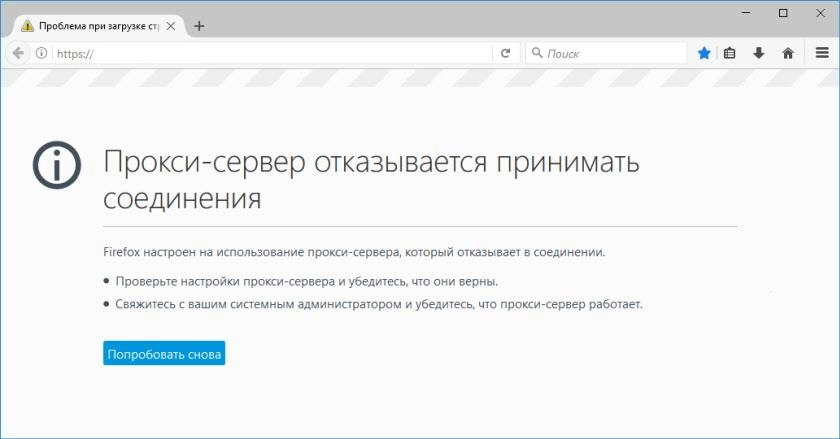
- The proxy server is refusing connections (connection refused)
- Proxy unavailable or unreachable
- Proxy connected but not working (no internet)
- Proxy stuck on "connecting"
- How to clear or reset proxy settings in internet explorer, edge, and windows
- When it's the proxy, not your settings
- Frequently asked questions
If your proxy stopped responding, won't connect, or your browser shows "the proxy server is refusing connections," don't rush to replace it. In most cases the cause is one of six: a wrong IP and port, your IP not added to the whitelist (with IP authorization), a wrong username or password, the proxy server being down or overloaded, a firewall or antivirus blocking the connection, or an expired plan. Below is a quick diagnosis and a fix for each symptom.
Quick diagnosis in 5 steps
Before digging into a specific symptom, run this short checklist — it solves most cases:
- Check the IP and port. A typo in the address or port is the number one cause. Match the data from your dashboard character by character.
- Check the authorization method. If IP authorization is on, your current IP must be on the whitelist. If your ISP changed your IP, the proxy will stop letting you in.
- Check the username and password (for login-based auth). An extra space or an old password after rotation is a common cause of refusal.
- Check the protocol. An HTTP proxy set as SOCKS5 (or vice versa) causes "connection refused." The type must match.
- Test the proxy on its own. Open the proxy checker — if the proxy fails there too, the problem isn't your settings.
Symptom → cause → fix
| Symptom | Likely cause | What to do |
|---|---|---|
| Won't connect / no connection | Wrong IP:port or protocol | Verify the data and the type (HTTP/SOCKS5) |
| Refusing connections | IP not whitelisted or wrong port | Add your IP, check the port |
| Connected but not working | DNS leak, IPv6, or authorization | Disable IPv6, check DNS and access |
| Not loading / pages won't load | Overload or traffic limit | Rotate the IP, check your balance |
| Proxy unavailable | Server down or plan expired | Check status and plan expiry |
Proxy not working, not loading, or pages won't load
If the proxy used to work but now "isn't working," pages "won't load," or content "isn't loading," the cause is usually channel overload, an exhausted traffic limit, or a temporarily unavailable node. Do this in order:
- Rotate the IP (change the address) — if the node is temporarily overloaded, a fresh IP fixes it.
- Check your remaining traffic and plan expiry in the dashboard.
- Open the site without the proxy to confirm the problem is the proxy, not the resource itself.
- Clear the browser cache and cookies — a stale session may be stuck on an unavailable node.
Proxy won't connect or there's no connection to the proxy
"Proxy won't connect," "no connection to the proxy," "can't connect to the proxy server," and "what to do if the proxy server won't connect" almost always mean the request isn't reaching the server. Check:
- Address and port — the most common cause. One wrong character and there's no connection.
- Proxy type — HTTP, HTTPS, or SOCKS5. The wrong type in your settings means no connection.
- Firewall and antivirus — disable them temporarily and test: security software can block the outbound connection.
- Network — a corporate or public Wi-Fi may block non-standard ports.
The proxy server is refusing connections (connection refused)
Errors like "the proxy server is refusing connections," "proxy server refused connection," and the Chrome error ERR_PROXY_CONNECTION_FAILED mean the server is reachable but rejects you specifically. Causes and fixes:
- Your IP isn't whitelisted. With IP authorization, add your current address in the dashboard. After your ISP changes your IP, access drops — add the new one.
- Wrong port. HTTP and SOCKS5 usually use different ports — use the correct one for the protocol.
- Wrong username or password with login-based auth.
- Connection limit reached — close extra sessions or add more threads.
Proxy unavailable or unreachable
"Proxy unavailable" means either the server is genuinely down or there's a routing problem on the way to it. Check:
- Plan expiry — the proxy is disabled once the plan ends.
- Node status — check it in the dashboard or via the proxy checker.
- DNS and region — sometimes a node is reachable from one network and not another.
Proxy connected but not working (no internet)
"Proxy connected but not working" (status shows connected, but there's no internet) is usually caused by leaks or authorization:
- DNS leak — requests bypass the proxy. Check it with a DNS leak test.
- IPv6 — disable IPv6 if the proxy only supports IPv4.
- Captive portal — the network requires a browser sign-in before internet access.
- Authorization — the connection is established but the traffic isn't authorized (check login/password or the IP whitelist).
Proxy stuck on "Connecting"
If the proxy is stuck on "Connecting" and never finishes, the server accepts the request but doesn't respond. Rotate the IP, switch to an alternate port (if available), check whether antivirus is blocking the connection, and make sure you haven't exceeded the simultaneous-connection limit.
How to clear or reset proxy settings in Internet Explorer, Edge, and Windows
"How to clear proxy settings" matters when, after you disable a proxy, the browser still tries to use it. To reset the system proxy settings in Windows:
- Open Settings → Network & Internet → Proxy (or "Internet Options → Connections → LAN settings" in the classic view).
- Turn off "Use a proxy server" and "Automatically detect settings" if you don't need them.
- Save and restart the browser.
- If the settings keep coming back, scan the system for unwanted software — it may be re-applying the proxy.
When it's the proxy, not your settings
If you've gone through the diagnosis and the proxy is still unstable, the problem is often the quality of the proxy itself: cheap datacenter and public IPs get blacklisted fast and start refusing connections. Mobile proxies from mobileproxy.space use real mobile-carrier IPs with high trust and on-demand rotation, which removes most "connection refused" causes. You can test any proxy in our proxy checker.
Frequently asked questions
Why is the proxy server refusing connections?
Most often your IP isn't on the whitelist (with IP authorization), the port or protocol is wrong, or the username and password are incorrect. Less often, the connection limit is reached. Check your access details and authorization method.
What should I do if the proxy server won't connect?
Match the IP and port character by character, check the proxy type (HTTP or SOCKS5), temporarily disable your firewall and antivirus, and test the proxy in a checker. If it fails there too, the problem is on the proxy side, not your settings.
The proxy is connected but there's no internet — why?
This is usually a DNS leak, enabled IPv6, or unauthorized traffic. Disable IPv6, run a DNS leak test, and make sure authorization (login/password or IP whitelist) went through.
Is the proxy down only for me or for everyone?
Test the proxy in our checker and from a different network. If it works in the checker but not for you, the issue is your network, firewall, or IP authorization. If it's down everywhere, the node is offline or the plan expired.
How do I clear proxy settings in my browser?
On Windows, disable the proxy under "Settings → Network & Internet → Proxy" (or "Internet Options → Connections → LAN settings"), save, and restart the browser. Chrome and Edge use the Windows system proxy settings.
Why won't pages load through my proxy?
The node is usually overloaded or the traffic limit is exhausted. Rotate the IP, check your remaining traffic and plan expiry, and clear the browser cache.
How do I know if the proxy is dead and not my settings?
Open the proxy checker and enter the details. If the checker shows the proxy isn't responding, the problem is the proxy itself. If it responds but it still fails for you, look into your settings, authorization, or network.
What does ERR_PROXY_CONNECTION_FAILED mean?
It's a Chrome error meaning the browser couldn't reach the configured proxy. Verify the IP and port, confirm the proxy is online (test it in a checker), make sure your IP is whitelisted, and check that a firewall isn't blocking the connection.